
Workbench
Workbench
1. Product Introduction
Workbench is Timecho's official visualization console for TimechoDB. It provides a graphical interface for managing database instances, tables, time-series data, queries, analysis, permissions, and runtime status.
In the table model, Workbench organizes data around databases and time-series tables. It displays time, tag, attribute, and field columns and provides data import and export, SQL queries, AI analysis, and trend visualization.
2. Features
2.1 Sign In
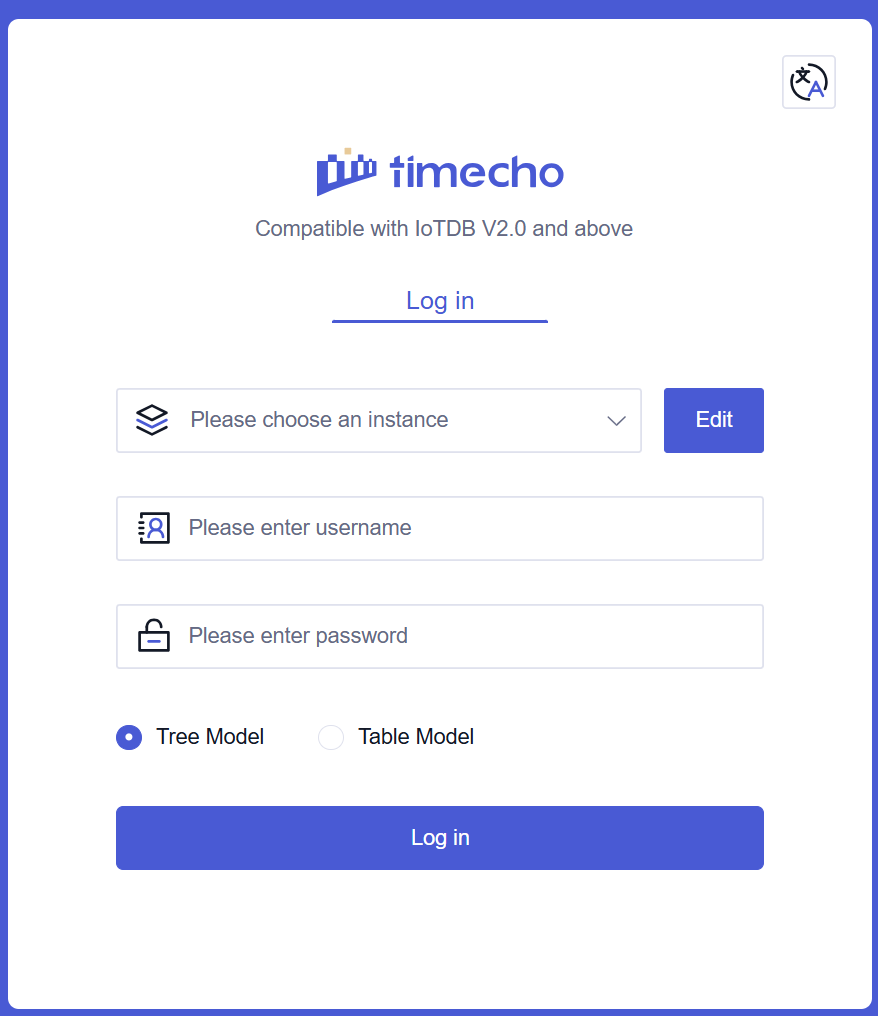
Select a configured instance, enter a username and password, and choose Tree Model or Table Model as the entry point. The sign-in page supports language switching and can require a verification code when that option is enabled. The instance selector provides an edit entry for maintaining connection details.
2.2 Instance Management
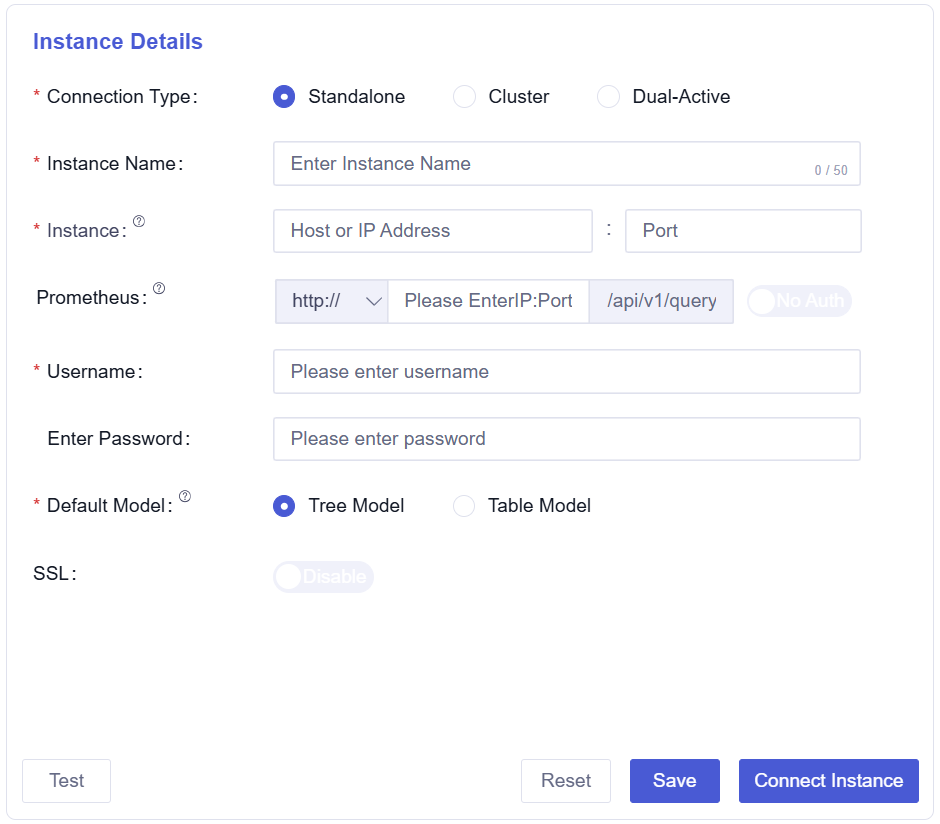
Manage multiple TimechoDB instances from one place. Create, edit, delete, and test connections for standalone, cluster, and dual-active deployments. The instance list and relationship graph help organize deployments and switch the active instance.
Instance settings include the default data model, SSL, and an optional Prometheus endpoint. Database and monitoring connection tests are reported separately.
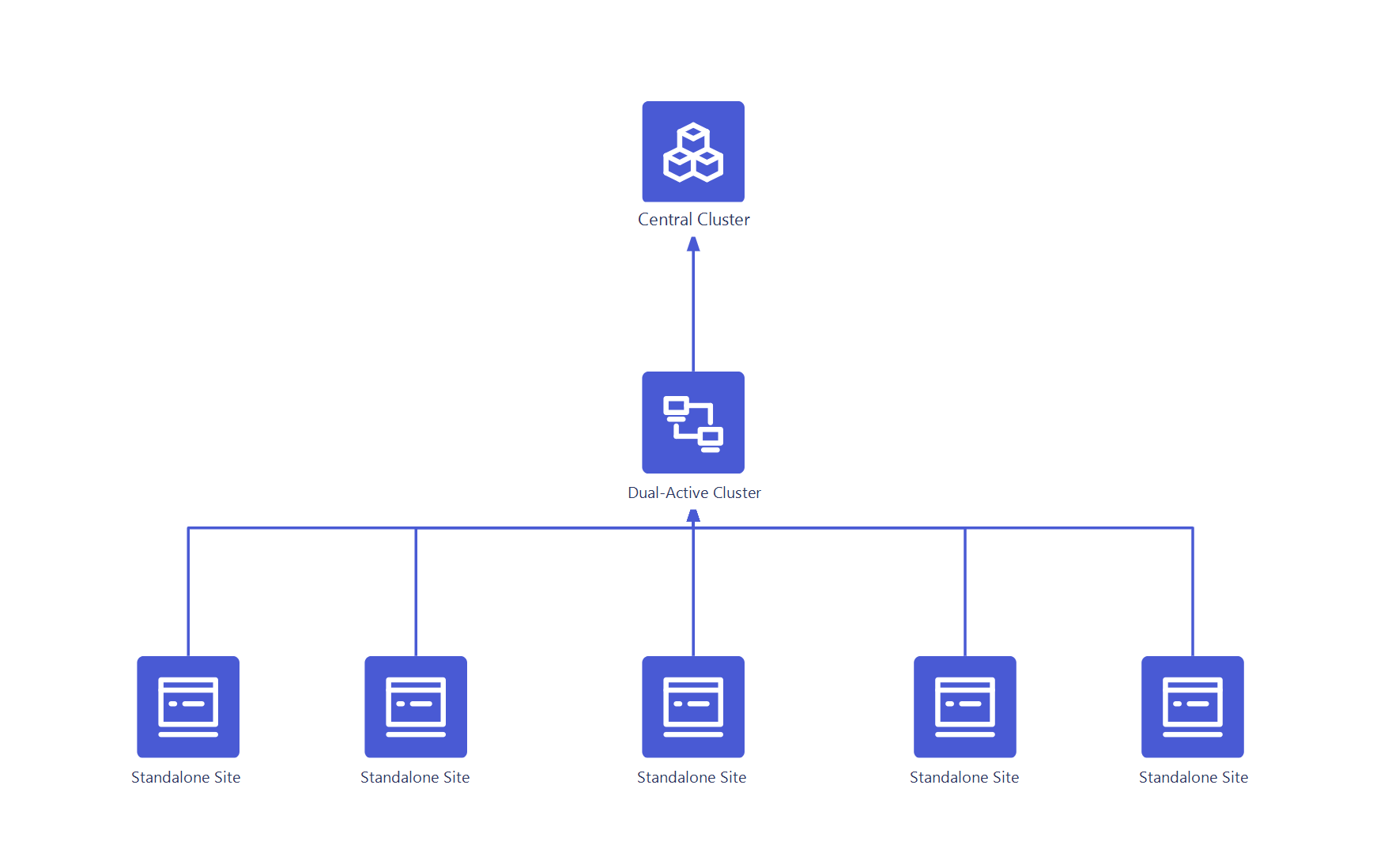
The instance topology graph displays relationships between instances. Drag nodes, add connections and text, and adjust the layout to organize deployments. Select an instance to review or edit its connection details or switch the active instance.
2.3 Home
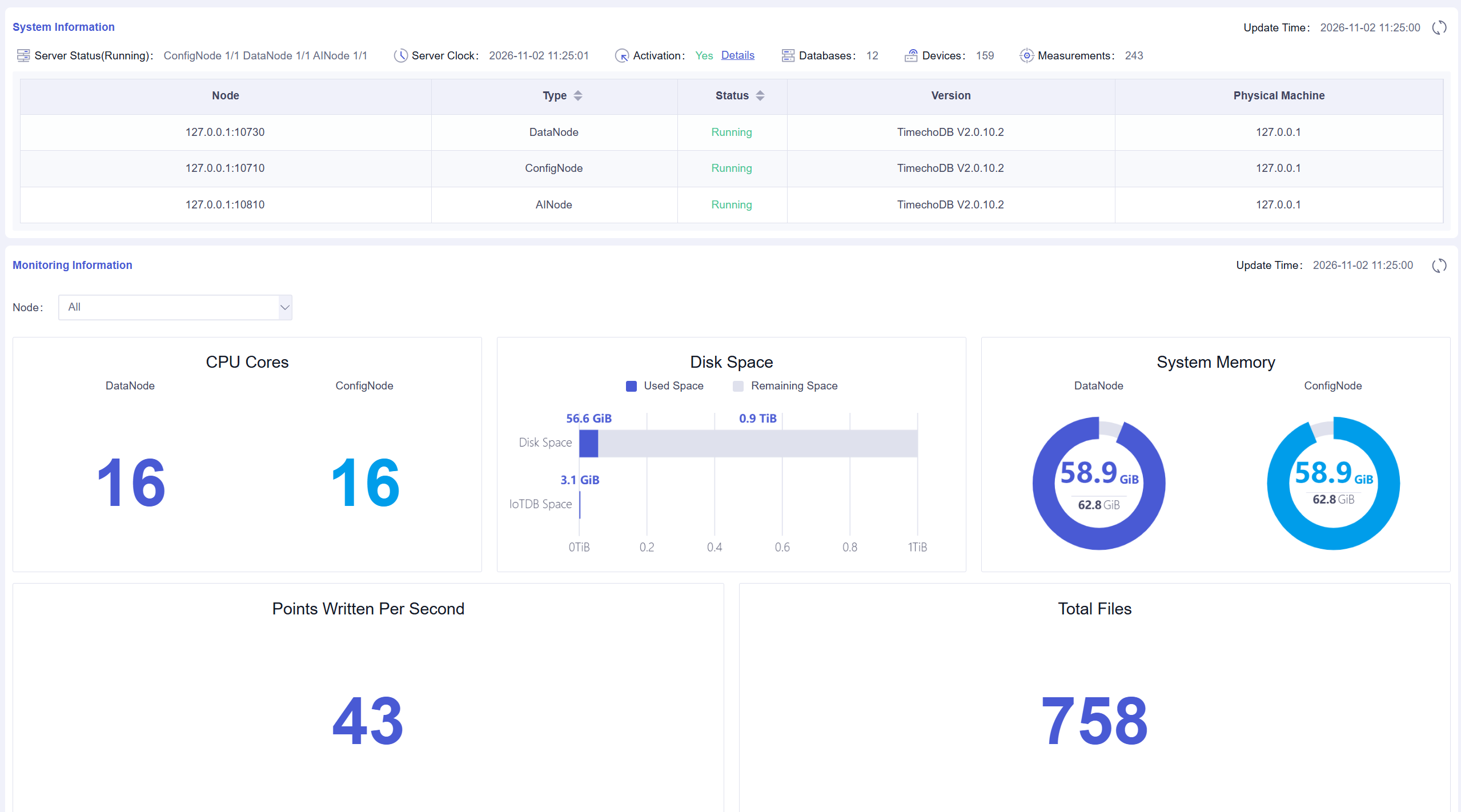
The Home page summarizes activation, server clock, database and table counts, node status, versions, and physical machine addresses. With a monitoring service configured, the page also displays CPU, memory, disk, and write metrics by node.
2.4 Data Management
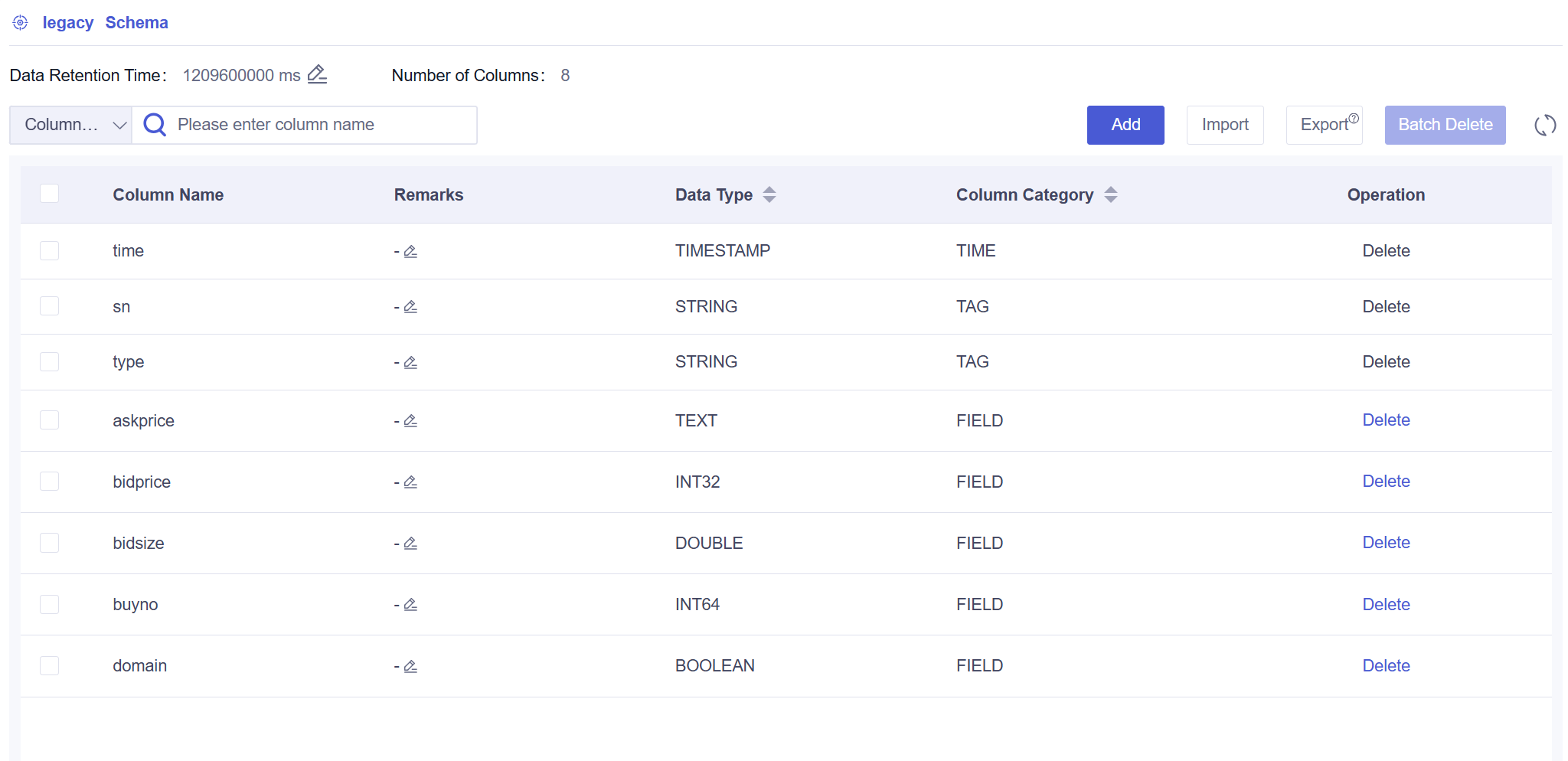
Manage databases, time-series tables, schemas, and table data. Search and review column names, descriptions, data types, and TIME, TAG, ATTRIBUTE, and FIELD categories. Create and maintain tables, and import or export schemas.
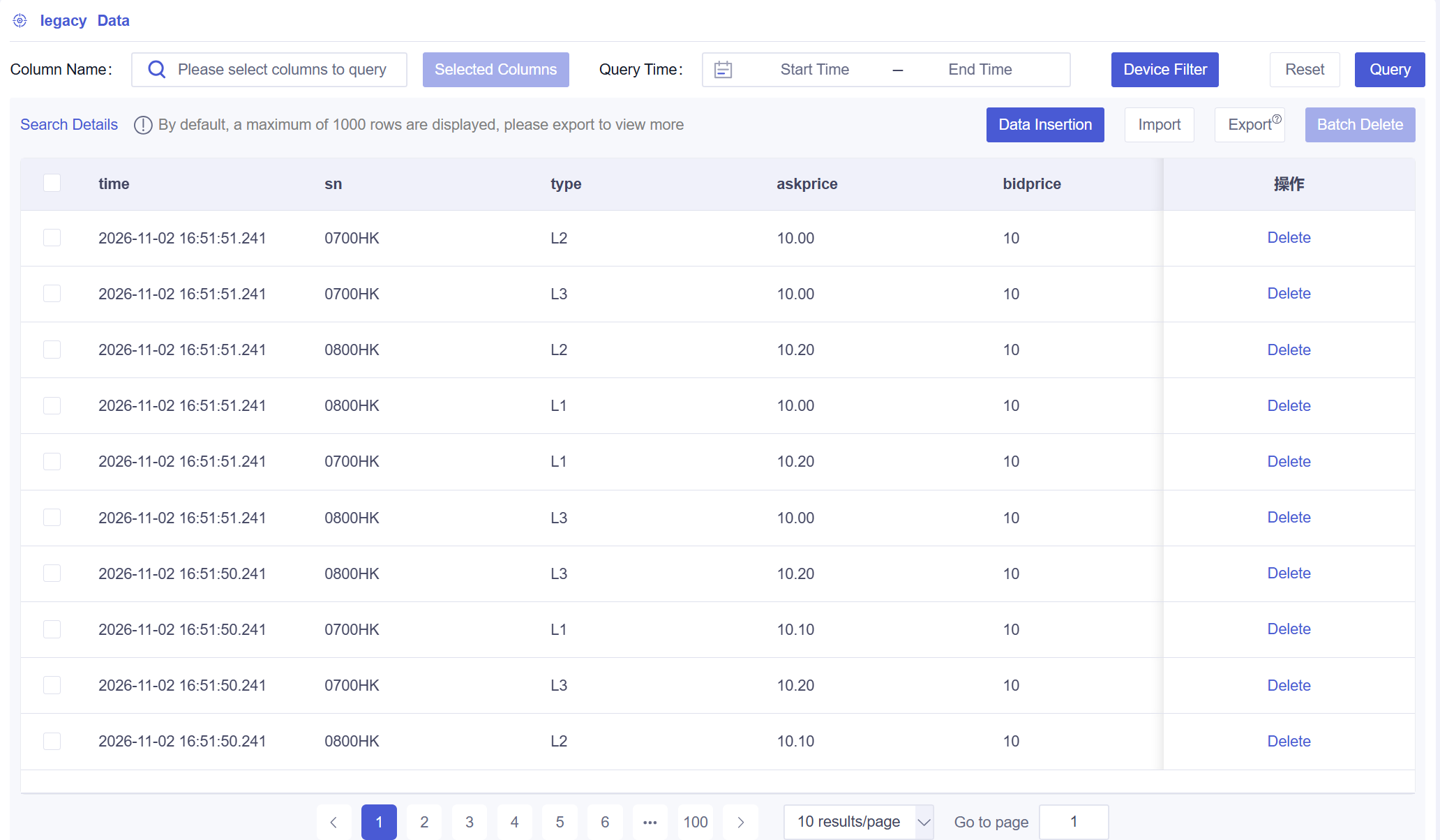
For a selected table, choose columns, set a time range, and filter by device. Results support pagination, data insertion and deletion, and CSV/XLSX import and export.
2.5 SQL Operations
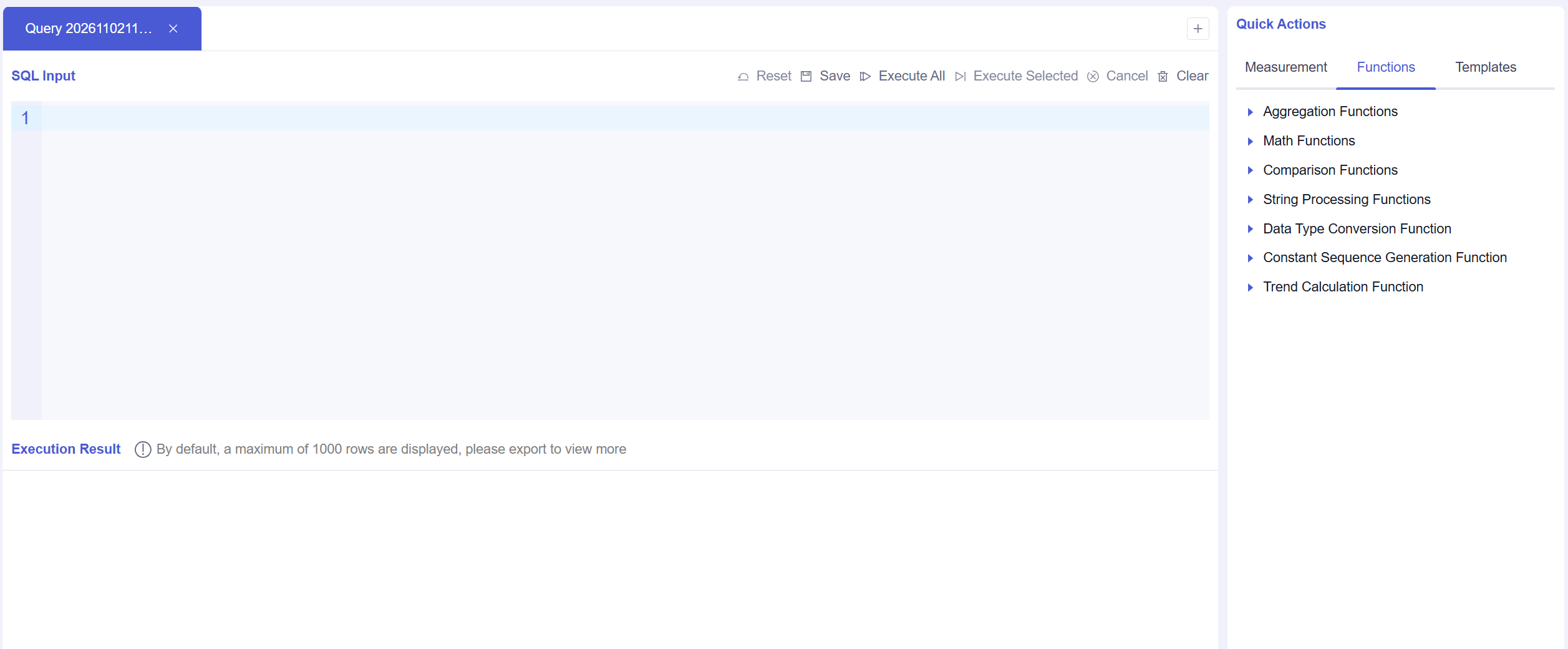
Enter and execute one or more SQL statements in the editor. Reset, save, and editing actions are available alongside execution controls. Results appear below the editor and can be exported, making it easier to validate queries and review returned data.
2.6 AI Analysis
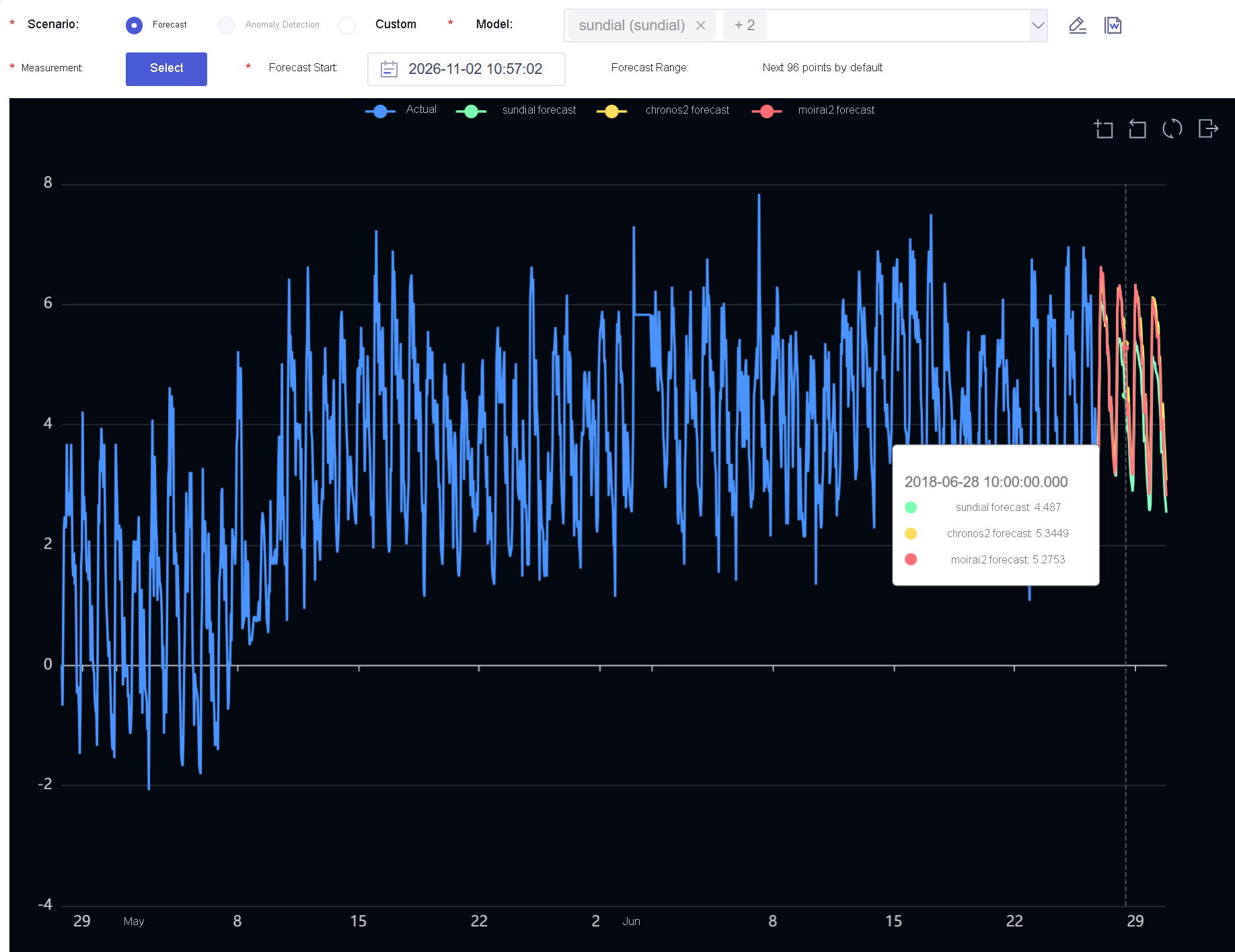
Select a database, table, device, and measurement, then configure a model and prediction start time. Compare source data with model results in charts and tables. Download results or write them back to a selected database, table, device, and measurement. Model management supports search, import, fine-tuning, and batch deletion.
2.7 Visualization
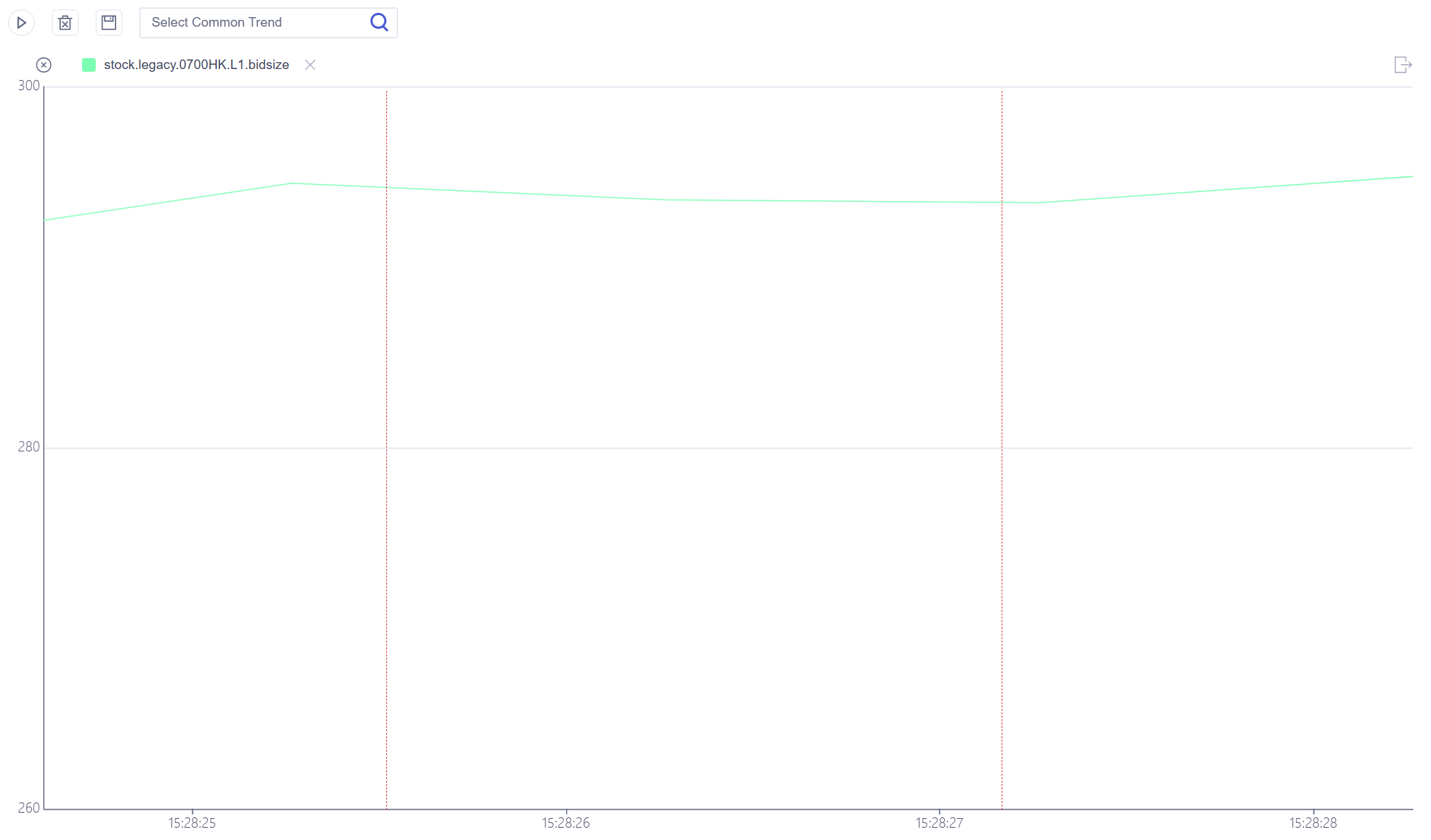
Real-time and historical trends display numeric values by database, table, device, and measurement. Real-time trends can be started and stopped; historical trends use a selected time range and an overview chart to adjust the visible window. Inspect values and differences with the cursor, save common selections as templates, and export charts as PNG files.
2.8 System Management
Manage users, roles, and their relationships. Review global and data permissions at system, database, and table scope, including permissions to create, delete, modify, query, and write data. Permission delegation can also be managed through the interface.
3. Usage
For deployment instructions, see Workbench Deployment. Contact the Timecho team for the detailed operation manual.