
AINode Deployment
AINode Deployment
1. AINode Introduction
1.1 Capability Introduction
AINode is the third type of endogenous node provided by TimechoDB after ConfigNode and DataNode. By interacting with the DataNodes and ConfigNodes of an TimechoDB cluster, this node extends the capability for machine learning analysis on time series. AINode integrates model management, training, and inference within the database engine. It supports performing time series analysis tasks on specified time series data using registered models through simple SQL statements and also supports registering and using custom machine learning models. AINode currently integrates machine learning algorithms and self-developed models for common time series analysis scenarios (e.g., forecasting).
1.2 Deployment Modes
AINode is an additional component outside the TimechoDB cluster and is deployed using a separate installation package.
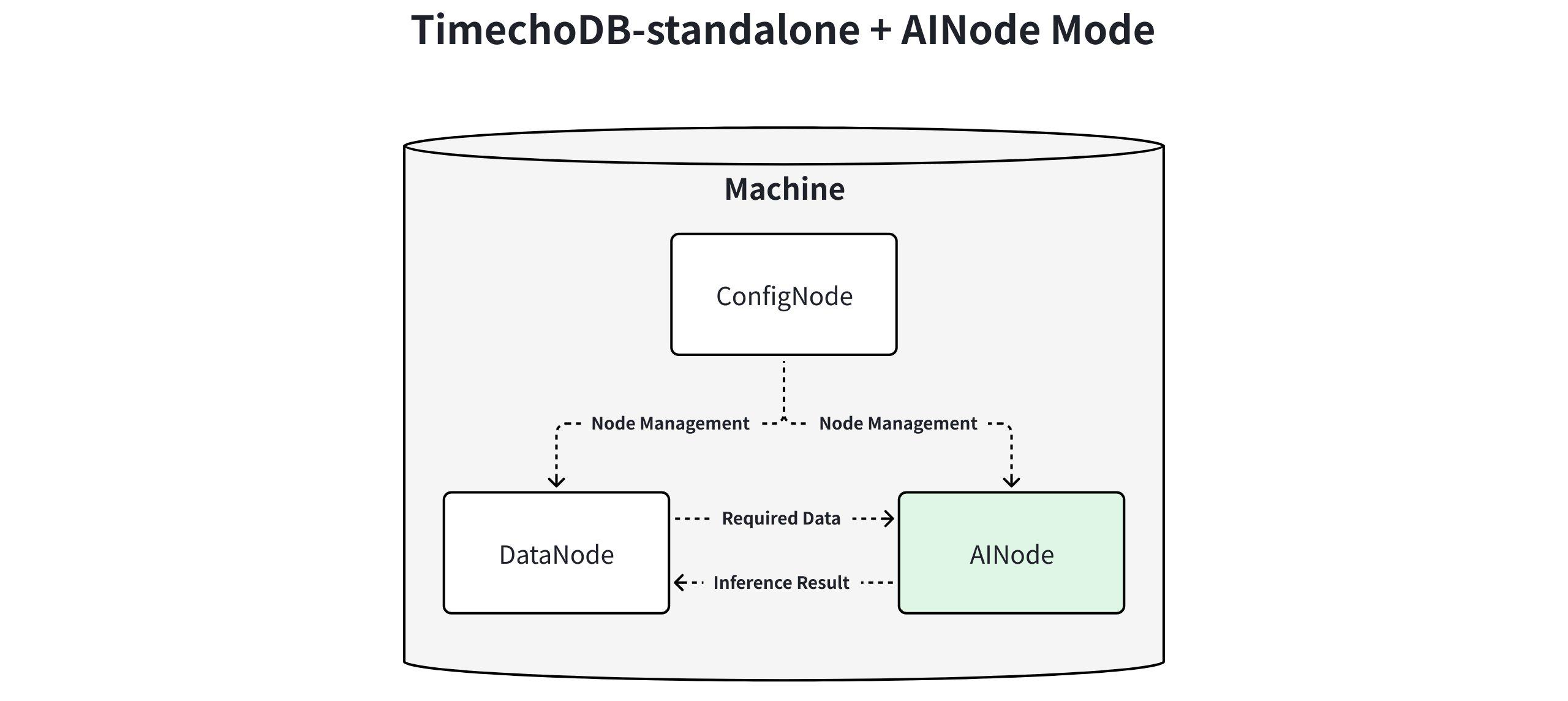
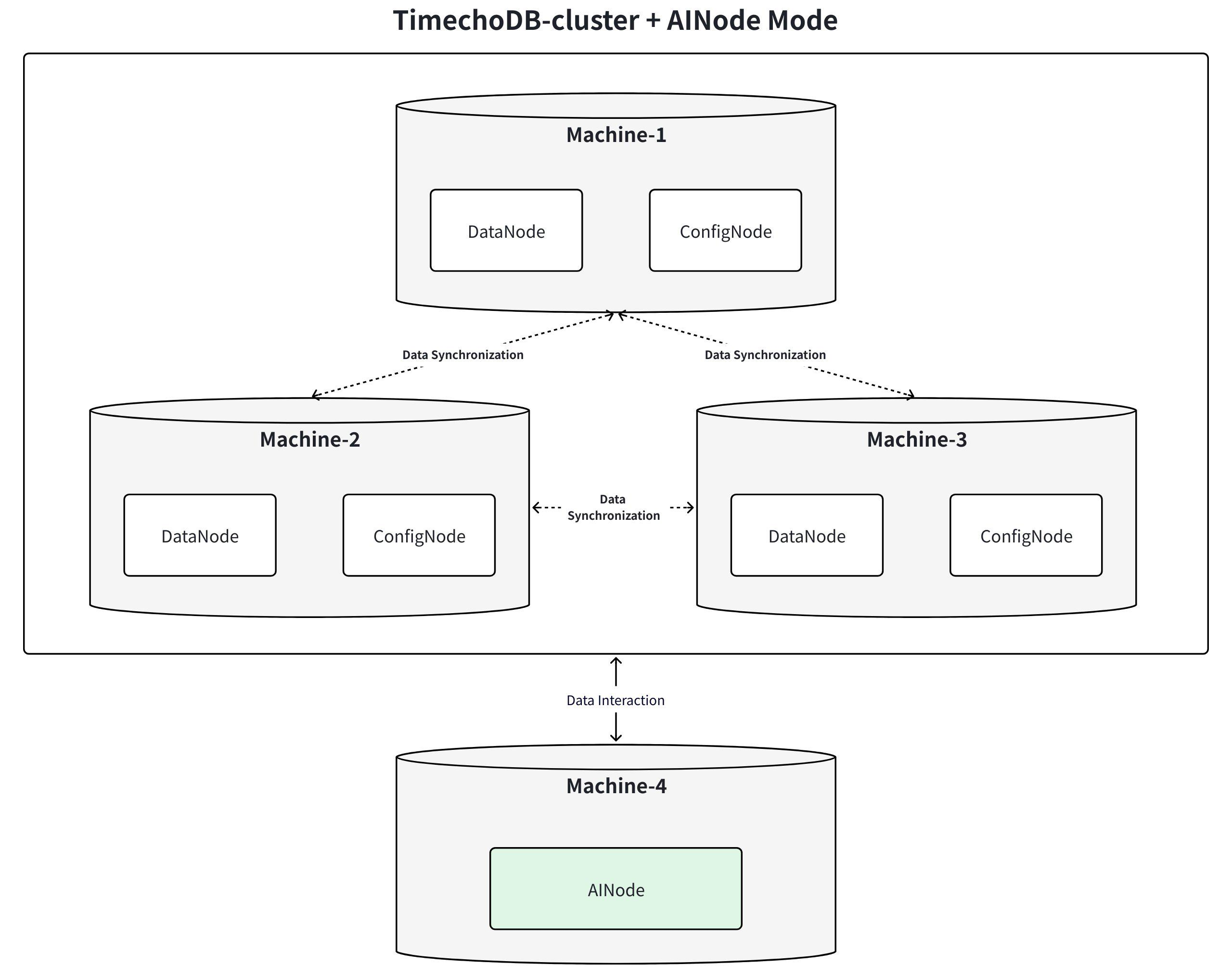
2. Installation Preparation
2.1 Installation Package Acquisition
The key directory structure after extracting the AINode installation package (timechodb-<version>-ainode-bin.zip) is as follows:
| Directory | Type | Description |
|---|---|---|
| lib | Folder | Executable programs and dependencies for AINode |
| sbin | Folder | Operation scripts for AINode, used to start or stop AINode |
| conf | Folder | Configuration files and version declaration file for AINode |
2.2 Pre-installation Verification
To ensure the AINode installation package you obtained is complete and correct, it is recommended to perform an SHA512 verification before installation and deployment.
Preparation:
- Obtain the official SHA512 checksum: Please contact Timecho staff.
Verification Steps (using Linux as an example):
- Open a terminal, navigate to the directory containing the installation package (e.g.,
/data/ainode):
cd /data/ainode- Execute the following command to calculate the hash value:
sha512sum timechodb-{version}-ainode-bin.zip- The terminal will output the result (left side is the SHA512 checksum, right side is the filename):
(base) root@hadoop@1:/data/ainode (0.664s)
sha512sum timechodb-2.0.6.1-ainode-bin.zip
4d5a6a64935b4f0459bc9ed214c4563aa7a6a5941024336e9416212424707f27bdfdfc70f4c528b51b812687d660014adc1b8add699498ea67ff17c7e619a6f0 timechodb-2.0.6.1-ainode-bin.zip- Compare the output with the official SHA512 checksum. If they match, you can proceed with the AINode installation and deployment steps below.
Notes:
- If the verification results do not match, please contact Timecho staff to obtain a new installation package.
- If you encounter a "file not found" prompt during verification, check if the file path is correct or if the installation package was downloaded completely.
2.3 Environment Requirements
- Recommended operating environment: Linux, macOS.
- TimechoDB Version: >= V2.0.8.
3. Installation, Deployment, and Usage
3.1 Installing AINode
Download the AINode installation package, import it into a dedicated folder, switch to that folder, and extract the package.
unzip timechodb-<version>-ainode-bin.zip3.2 Modifying Configuration Items
AINode supports modifying some necessary parameters. You can find the following parameters in the /TIMECHODB_AINODE_HOME/conf/iotdb-ainode.properties file and make persistent modifications:
| Name | Description | Type | Default Value |
|---|---|---|---|
cluster_name | The cluster identifier the AINode is to join | String | defaultCluster |
ain_seed_config_node | The ConfigNode address for AINode registration upon startup | String | 127.0.0.1:10710 |
ain_cluster_ingress_address | The rpc address of the DataNode from which AINode pulls data | String | 127.0.0.1 |
ain_cluster_ingress_port | The rpc port of the DataNode from which AINode pulls data | Integer | 6667 |
ain_cluster_ingress_username | The client username for the DataNode from which AINode pulls data | String | root |
ain_cluster_ingress_password | The client password for the DataNode from which AINode pulls data | String | root |
ain_rpc_address | The address for AINode service provision and communication (internal service communication interface) | String | 127.0.0.1 |
ain_rpc_port | The port for AINode service provision and communication | String | 10810 |
ain_system_dir | AINode metadata storage path. The starting directory for relative paths is OS-dependent; using an absolute path is recommended. | String | data/AINode/system |
ain_models_dir | AINode model file storage path. The starting directory for relative paths is OS-dependent; using an absolute path is recommended. | String | data/AINode/models |
ain_thrift_compression_enabled | Whether to enable Thrift compression mechanism for AINode. 0-disable, 1-enable. | Boolean | 0 |
3.3 Importing Built-in Weight Files
If the deployment environment has network connectivity and can access HuggingFace, the system will automatically pull the built-in model weight files. This step can be skipped.
For offline environments, contact Timecho staff to obtain the model weight folder and place it under the /TIMECHODB_AINODE_HOME/data/ainode/models/builtin directory.
NOTE: Pay attention to the directory hierarchy. The parent directory for all built-in model weights should be builtin.
3.4 Starting AINode
After completing the deployment of ConfigNodes, you can add an AINode to support time series model management and inference functionality. After specifying the TimechoDB cluster information in the configuration items, you can execute the corresponding command to start the AINode and join the TimechoDB cluster.
# Startup command
# Linux and macOS systems
bash sbin/start-ainode.sh

# Windows system
sbin\start-ainode.bat

# Background startup command (recommended for long-term operation)
# Linux and macOS systems
bash sbin/start-ainode.sh -d

# Windows system
sbin\start-ainode.bat -d
3.5 Activating AINode
Refer to TimechoDB Activation: Activation Method
You can verify AINode activation as follows. When the status shows
ACTIVATED, it indicates successful activation.
IoTDB> show cluster
+------+----------+-------+---------------+------------+--------------+-----------+--------------+
|NodeID|  NodeType| Status|InternalAddress|InternalPort|       Version|  BuildInfo|ActivateStatus|
+------+----------+-------+---------------+------------+--------------+-----------+--------------+
|     0|ConfigNode|Running|      127.0.0.1|       10710|     <version>|    xxxxxxx|     ACTIVATED|
|     1|  DataNode|Running|      127.0.0.1|       10730|     <version>|    xxxxxxx|     ACTIVATED|
|     2|    AINode|Running|      127.0.0.1|       10810|     <version>|    xxxxxxx|     ACTIVATED|
+------+----------+-------+---------------+------------+--------------+-----------+--------------+
Total line number = 3
It costs 0.002s
IoTDB> show activation
+---------------+---------+-----------------------------+
|    LicenseInfo|    Usage|                        Limit|
+---------------+---------+-----------------------------+
|         Status|ACTIVATED|                            -|
|    ExpiredTime|        -|2025-07-16T00:00:00.000+08:00|
|  DataNodeLimit|        1|                    Unlimited|
|    AiNodeLimit|        1|                            1|
|       CpuLimit|       11|                    Unlimited|
|    DeviceLimit|        0|                    Unlimited|
|TimeSeriesLimit|        0|                        9,999|
+---------------+---------+-----------------------------+
Total line number = 7
It costs 0.013s
3.6 Checking AINode Node Status
During startup, AINode automatically joins the TimechoDB cluster. After starting AINode, you can enter an SQL query in the command line. Seeing the AINode node in the cluster with a Running status (as shown below) indicates a successful join.
TimechoDB> show cluster
+------+----------+-------+---------------+------------+--------------+-----------+--------------+
|NodeID|  NodeType| Status|InternalAddress|InternalPort|       Version|  BuildInfo|ActivateStatus|
+------+----------+-------+---------------+------------+--------------+-----------+--------------+
|     0|ConfigNode|Running|      127.0.0.1|       10710|     <version>|    xxxxxxx|     ACTIVATED|
|     1|  DataNode|Running|      127.0.0.1|       10730|     <version>|    xxxxxxx|     ACTIVATED|
|     2|    AINode|Running|      127.0.0.1|       10810|     <version>|    xxxxxxx|     ACTIVATED|
+------+----------+-------+---------------+------------+--------------+-----------+--------------+
Additionally, you can check the model status using the show models command. If the model status is incorrect, please verify the weight file path.
IoTDB> show models
+---------------------+---------+--------+--------+
|              ModelId|ModelType|Category|   State|
+---------------------+---------+--------+--------+
|                arima|   sktime| builtin|  active|
|          holtwinters|   sktime| builtin|  active|
|exponential_smoothing|   sktime| builtin|  active|
|     naive_forecaster|   sktime| builtin|  active|
|       stl_forecaster|   sktime| builtin|  active|
|         gaussian_hmm|   sktime| builtin|  active|
|              gmm_hmm|   sktime| builtin|  active|
|                stray|   sktime| builtin|  active|
|             timer_xl|    timer| builtin|  active|
|              sundial|  sundial| builtin|  active|
|             chronos2|       t5| builtin|  active|
+---------------------+---------+--------+--------+
3.7 Stopping AINode
If you need to stop a running AINode node, execute the corresponding shutdown script. It supports specifying the port via the -p parameter, which corresponds to the ain_rpc_port configuration item.
# Linux / macOS
bash sbin/stop-ainode.sh
bash sbin/stop-ainode.sh -p <port_id> # Specify port

# Windows
sbin\stop-ainode.bat
sbin\stop-ainode.bat -p <port_id> # Specify port
After stopping AINode, you can still see the AINode node in the cluster, but its status will be UNKNOWN (as shown below). AINode functionality will be unavailable at this time.
IoTDB> show cluster
+------+----------+-------+---------------+------------+--------------+-----------+--------------+
|NodeID|  NodeType| Status|InternalAddress|InternalPort|       Version|  BuildInfo|ActivateStatus|
+------+----------+-------+---------------+------------+--------------+-----------+--------------+
|     0|ConfigNode|Running|      127.0.0.1|       10710|     <version>|    xxxxxxx|     ACTIVATED|
|     1|  DataNode|Running|      127.0.0.1|       10730|     <version>|    xxxxxxx|     ACTIVATED|
|     2|    AINode|UNKNOWN|      127.0.0.1|       10810|     <version>|    xxxxxxx|     ACTIVATED|
+------+----------+-------+---------------+------------+--------------+-----------+--------------+
If you need to restart the node, re-execute the startup script.
3.8 Upgrading AINode
If you need to upgrade the version of the current AINode, follow these steps:
Stop the current AINode service
- Run the stop command and ensure the service has completely exited before proceeding with subsequent operations.
# Linux / MacOS
bash sbin/stop-ainode.sh
bash sbin/stop-ainode.sh -p <port_id> # Specify port

# Windows
sbin\stop-ainode.bat
sbin\stop-ainode.bat -p <port_id> # Specify port
Replace core files
- Delete the
libandsbindirectories of the current version, then copy thelibandsbindirectories from the new version to the corresponding locations. - Back up the modified configuration files in the
confdirectory, then replace theconffolder and synchronize your modified configurations to the corresponding files.
- Delete the
Update built-in model weights (optional)
- If the new version includes updates to built-in models, relevant information will be announced in the Release History. You may contact Timecho staff to obtain the latest weight package, and replace it in the
data/ainode/models/builtindirectory.
- If the new version includes updates to built-in models, relevant information will be announced in the Release History. You may contact Timecho staff to obtain the latest weight package, and replace it in the
A