OPC DA Protocol
OPC DA Protocol
1. OPC DA
OPC DA (OPC Data Access) is a communication protocol standard in the field of industrial automation and a core part of the classic OPC (OLE for Process Control) technology. Its primary goal is to enable real-time data exchange between industrial devices and software (such as SCADA, HMI, and databases) in a Windows environment. OPC DA is implemented based on COM/DCOM and is a lightweight protocol with two roles: server and client.
- Server: Can be regarded as a pool of items, storing the latest data and status of each instance. All items can only be managed on the server side; clients can only read and write data and have no authority to manipulate metadata.
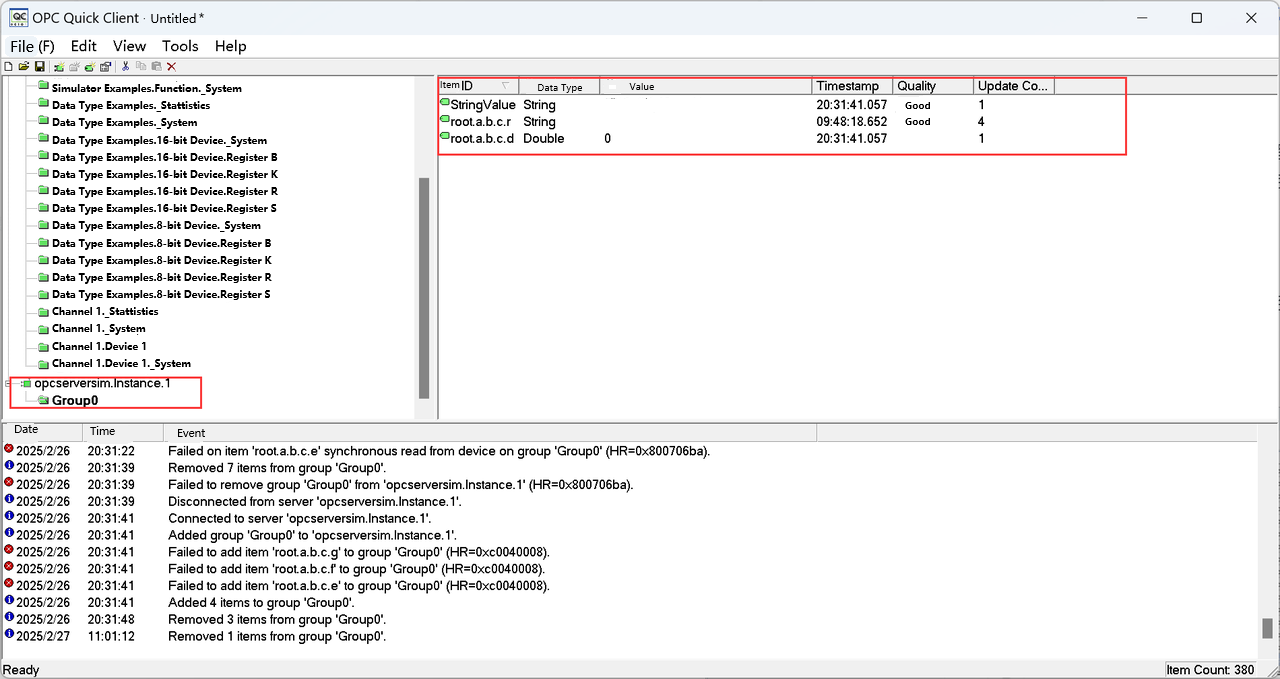
- Client: After connecting to the server, the client needs to define a custom group (this group is only relevant to the client) and create items with the same names as those on the server. The client can then read and write the items it has created.
2. OPC DA Sink
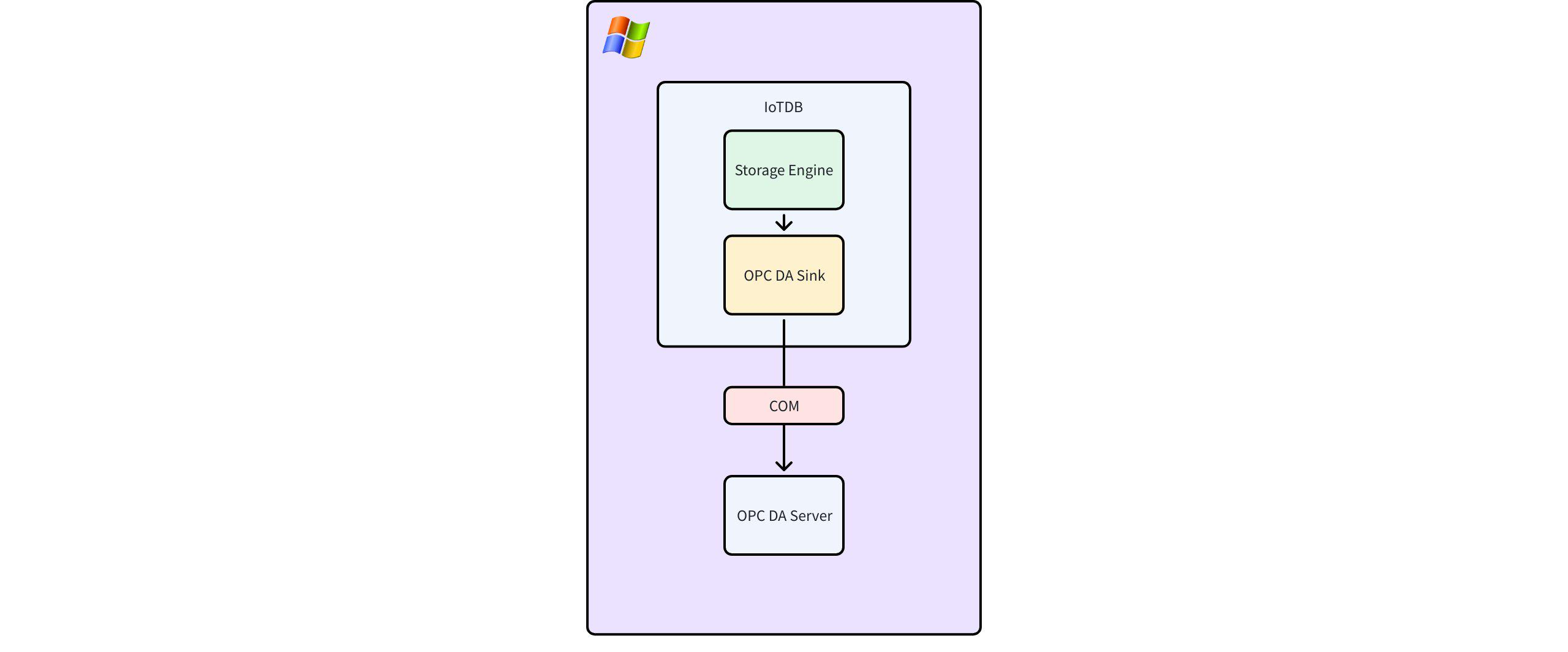
IoTDB (available since V2.0.5.1 for V2.x) provides an OPC DA Sink that supports pushing tree-model data to a local COM server plugin. It encapsulates the OPC DA interface specifications and their inherent complexity, significantly simplifying the integration process. The data flow diagram for the OPC DA Sink is shown below.
2.1 SQL Syntax
----  Note: The clsID here needs to be replaced with your own clsID
create pipe opc (
    'sink'='opc-da-sink',
    --- 'opcda.progid'='opcserversim.Instance.1'
    'opcda.clsid'='CAE8D0E1-117B-11D5-924B-11C0F023E91C'
);
2.2 Parameter Description
| Parameter | Description | Value Range | Required |
|---|---|---|---|
| sink | OPC DA Sink | String: opc-da-sink | Yes |
| sink.opcda.clsid | The ClsID (unique identifier string) of the OPC Server. It is recommended to use clsID instead of progID. | String | Either clsID or progID must be provided |
| sink.opcda.progid | The ProgID of the OPC Server. If clsID is available, it is preferred over progID. | String | Either clsID or progID must be provided |
2.3 Mapping Specifications
When used, IoTDB will push the latest data from its tree model to the server. The itemID for the data is the full path of the time series in the tree model, such as root.a.b.c.d. Note that, according to the OPC DA standard, clients cannot directly create items on the server side. Therefore, the server must pre-create items corresponding to IoTDB's time series with the itemID and the appropriate data type.
- Data type correspondence is as follows:
| IoTDB | OPC-DA Server |
|---|---|
| INT32 | VT_I4 |
| INT64 | VT_I8 |
| FLOAT | VT_R4 |
| DOUBLE | VT_R8 |
| TEXT | VT_BSTR |
| BOOLEAN | VT_BOOL |
| DATE | VT_DATE |
| TIMESTAMP | VT_DATE |
| BLOB | VT_BSTR (Variant does not support VT_BLOB, so VT_BSTR is used as a substitute) |
| STRING | VT_BSTR |
2.4 Common Error Codes
| Symbol | Error Code | Description |
|---|---|---|
| OPC_E_BADTYPE | 0xC0040004 | The server cannot convert the data between the specified format/requested data type and the canonical data type. This means the server's data type does not match IoTDB's registered type. |
| OPC_E_UNKNOWNITEMID | 0xC0040007 | The item ID is not defined in the server's address space (when adding or validating), or the item ID no longer exists in the server's address space (when reading or writing). This means IoTDB's measurement point does not have a corresponding itemID on the server. |
| OPC_E_INVALIDITEMID | 0xC0040008 | The itemID does not conform to the server's syntax specifications. |
| REGDB_E_CLASSNOTREG | 0x80040154 | Class not registered |
| RPC_S_SERVER_UNAVAILABLE | 0x800706BA | RPC service unavailable |
| DISP_E_OVERFLOW | 0x8002000A | Exceeds the maximum value of the type |
| DISP_E_BADVARTYPE | 0x80020005 | Type mismatch |
2.5 Usage Limitations
- Only supports COM and can only be used on Windows.
- A small amount of old data may be pushed after restarting, but new data will eventually be pushed.
- Currently, only tree-model data is supported.
3. Usage Steps
3.1 Prerequisites
- Windows environment, version >= 8.
- IoTDB is installed and running normally.
- OPC DA Server is installed.
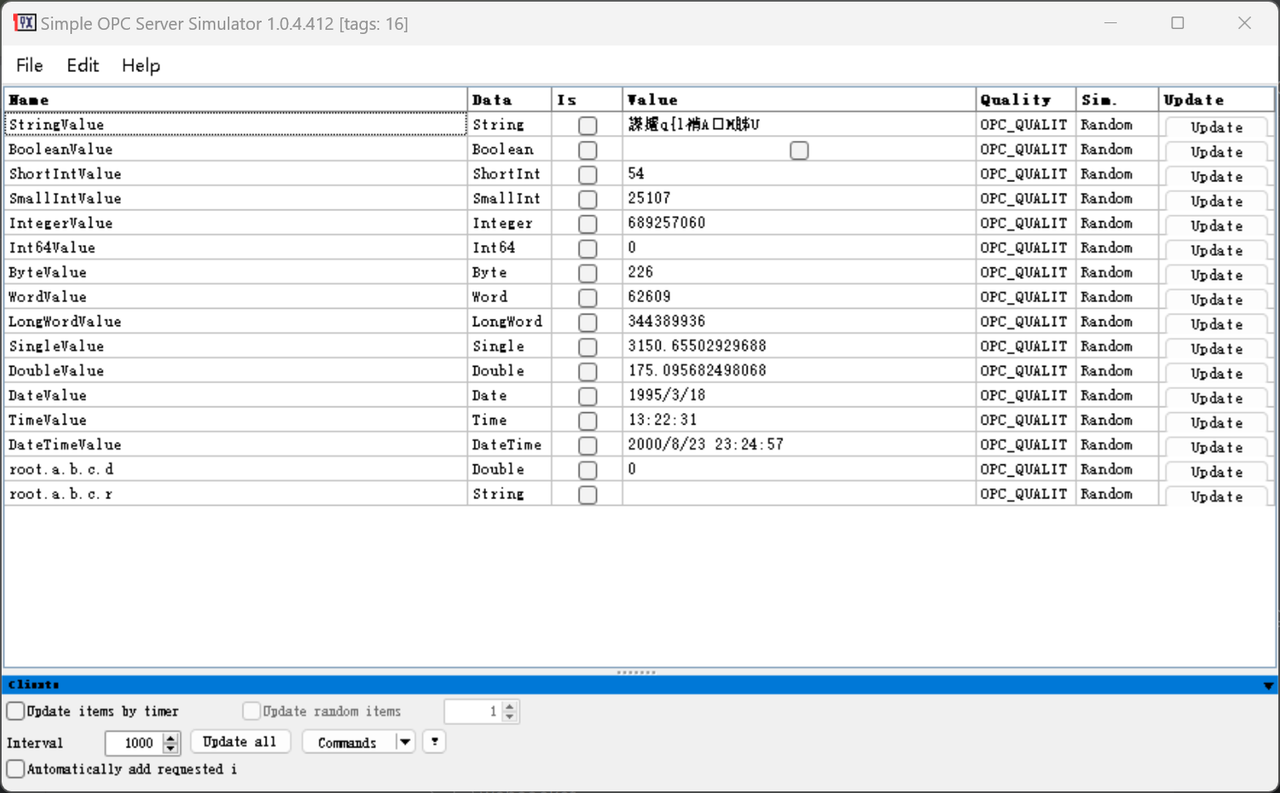
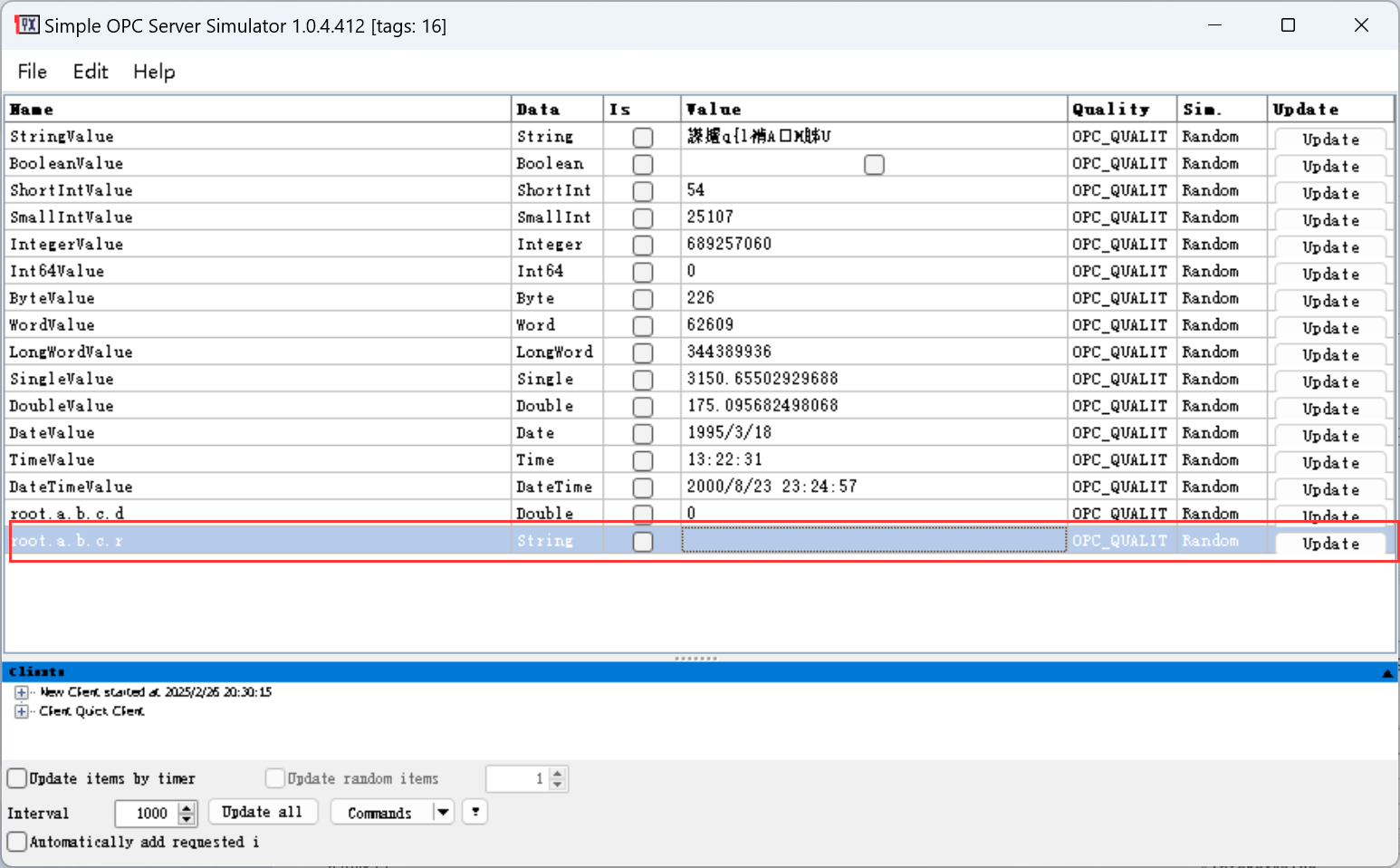
- Using Simple OPC Server Simulator as an example:
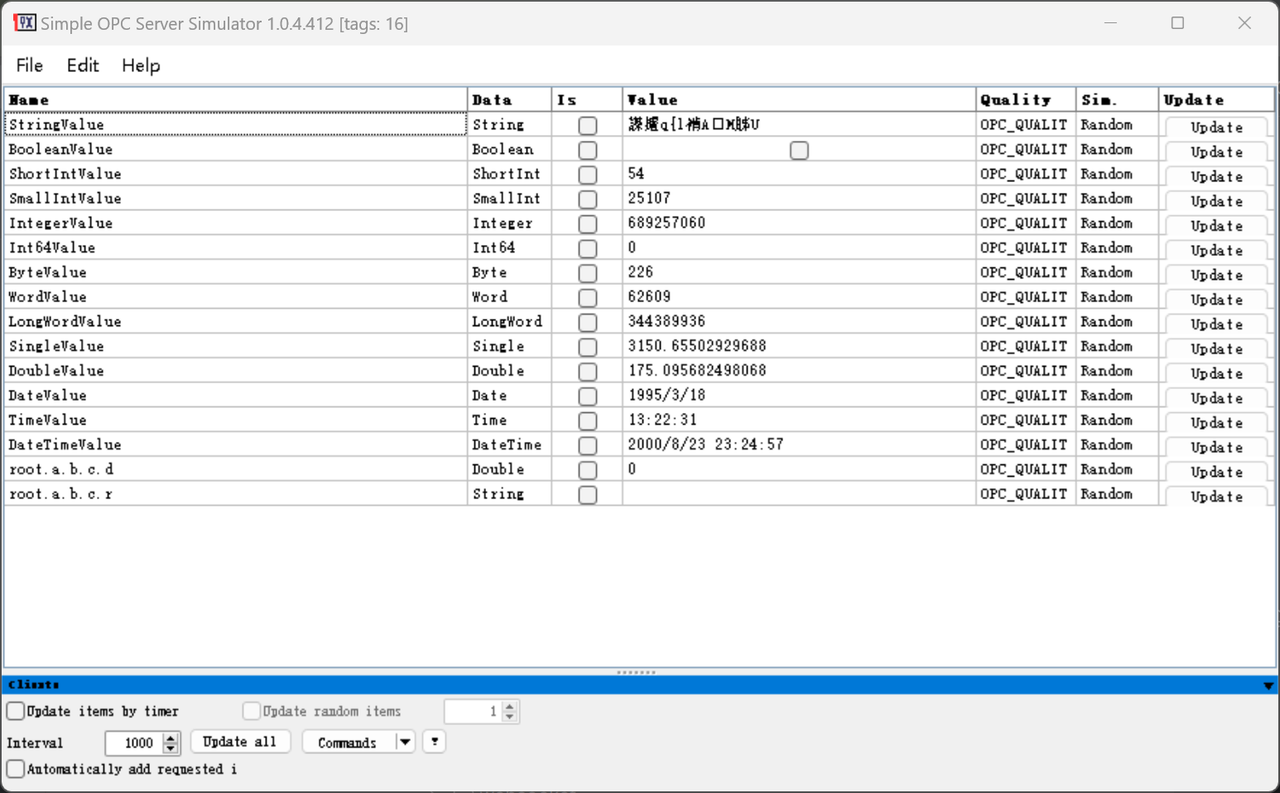
- Double-click an item to modify its name (itemID), data, data type, and other information.
- Right-click an item to delete it, update its value, or create a new item.
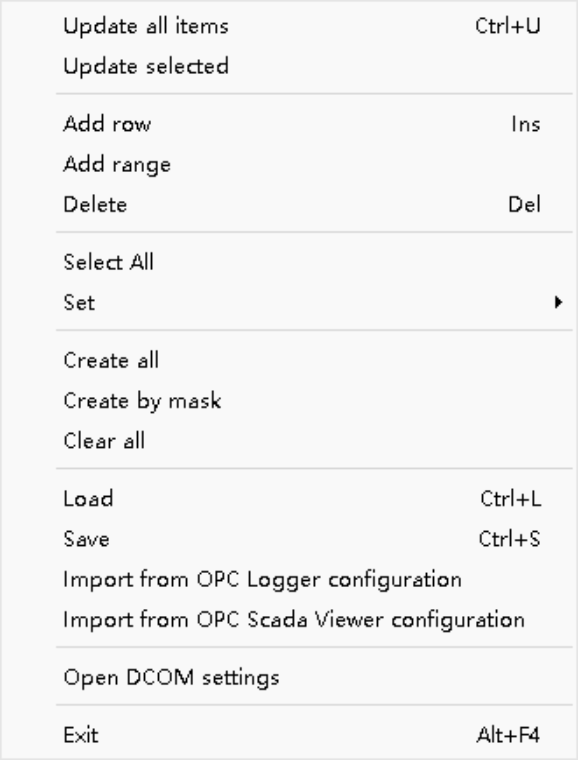
- OPC DA Client is installed.
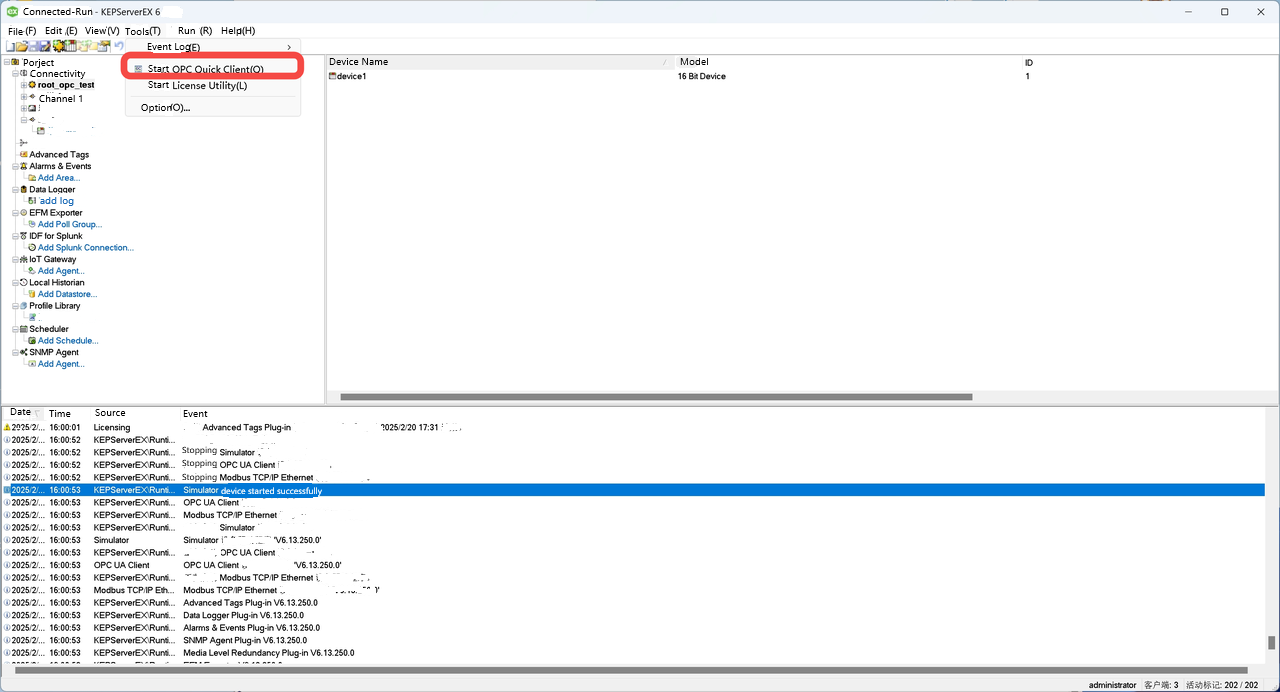
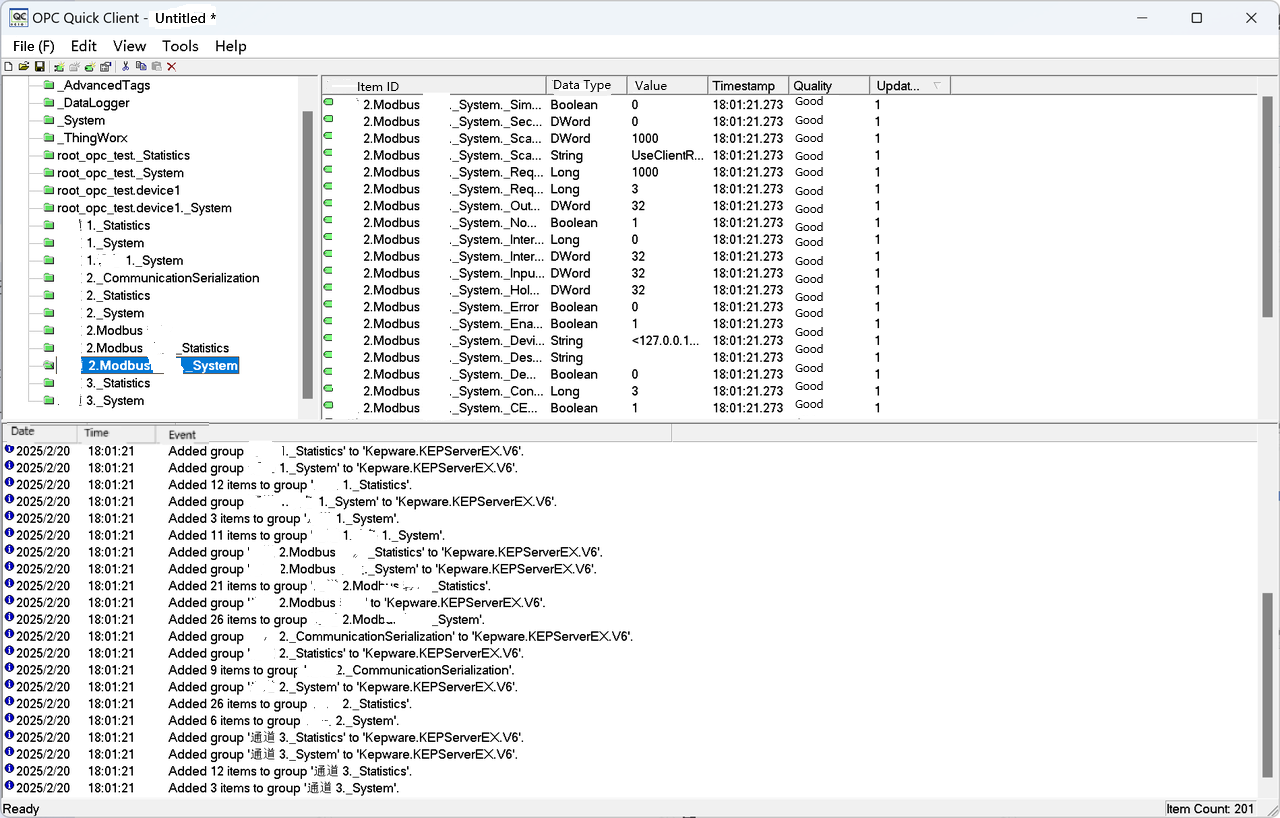
- Using KepwareServerEX's quickClient as an example:
- In Kepware, the OPC DA Client can be opened as follows:
3.2 Configuration Modifications
Modify the server configuration to prevent IoTDB's write client and Kepware's read client from connecting to two different instances, which would make debugging impossible.
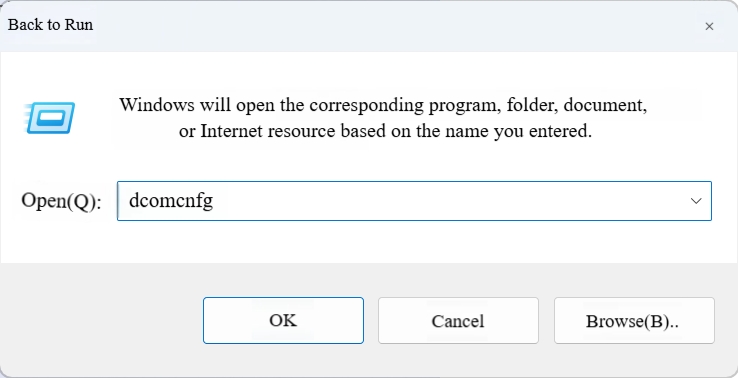
- First, press Win+R, type dcomcnfgin the Run menu, and open the DCOM component configuration:
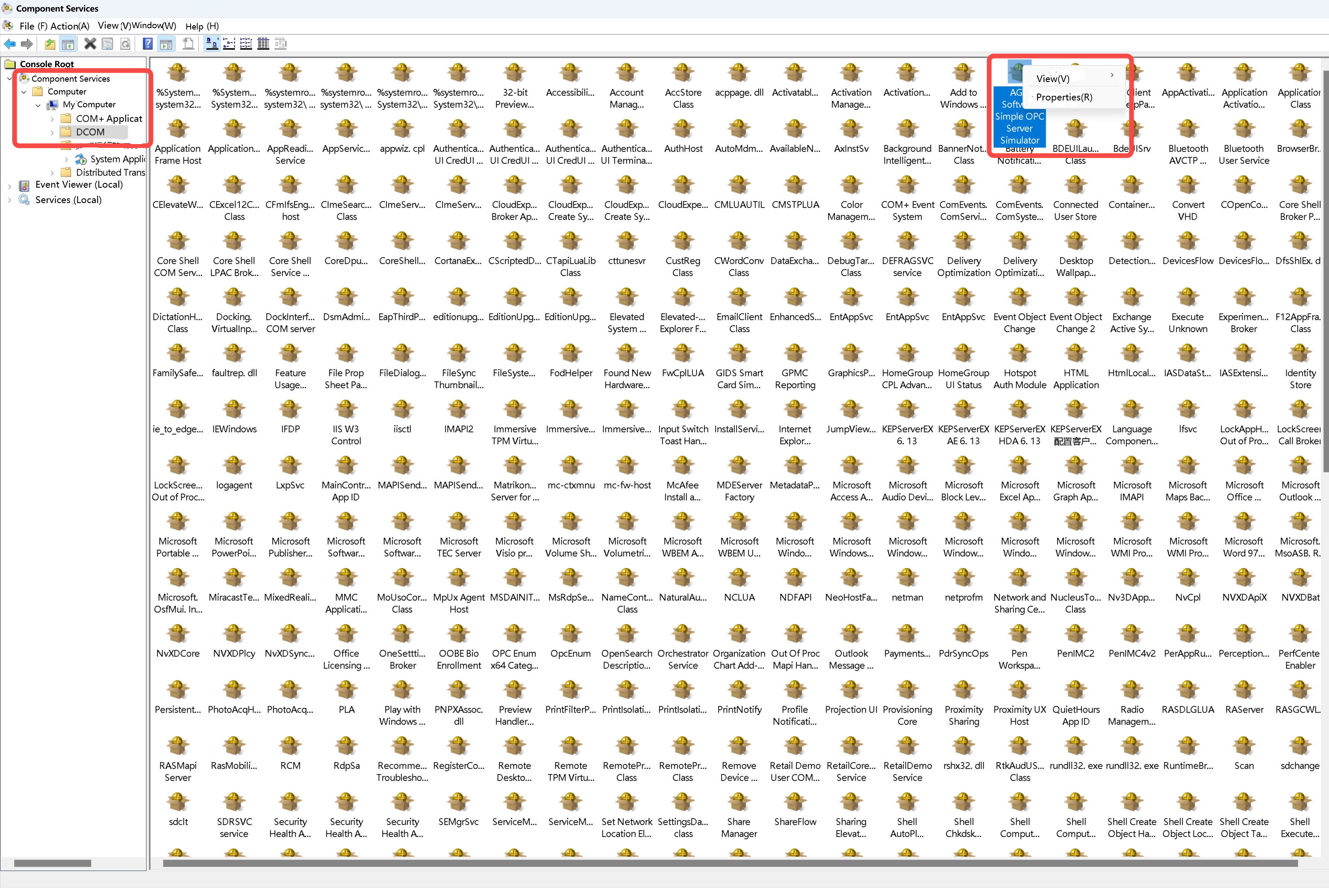
- Navigate to Component Services -> Computers -> My Computer -> DCOM Config, find AGG Software Simple OPC Server Simulator, right-click, and select "Properties":
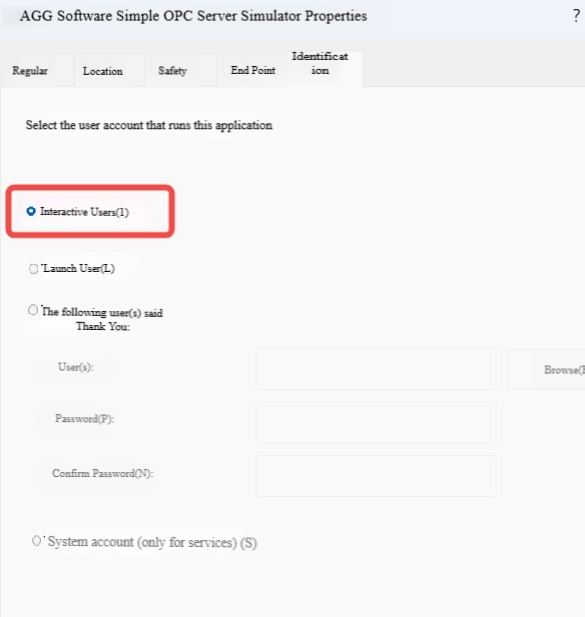
- Under Identity, change User Accountto Interactive User. Note: Do not use Launching User, as this may cause the two clients to start different server instances.
3.3 Obtaining clsID
- Method 1: Obtain via DCOM Configuration
- Press Win+R, type dcomcnfgin the Run menu, and open the DCOM component configuration.
- Navigate to Component Services -> Computers -> My Computer -> DCOM Config, find AGG Software Simple OPC Server Simulator, right-click, and select "Properties".
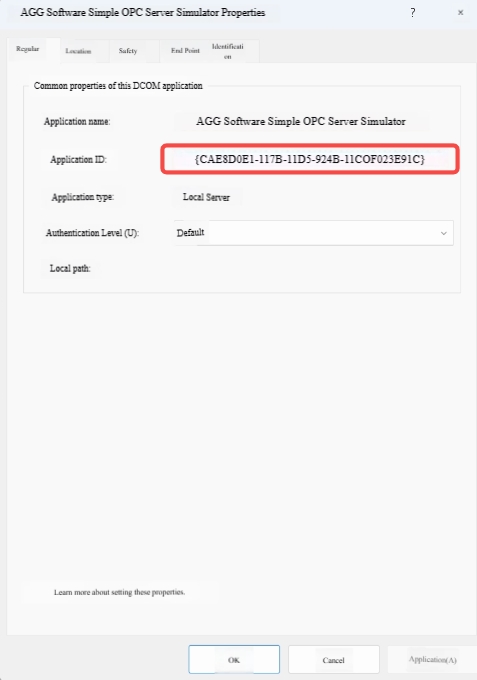
- Under General, you can obtain the application's clsID, which will be used for the opc-da-sink connection later. Note: Do not include the curly braces.
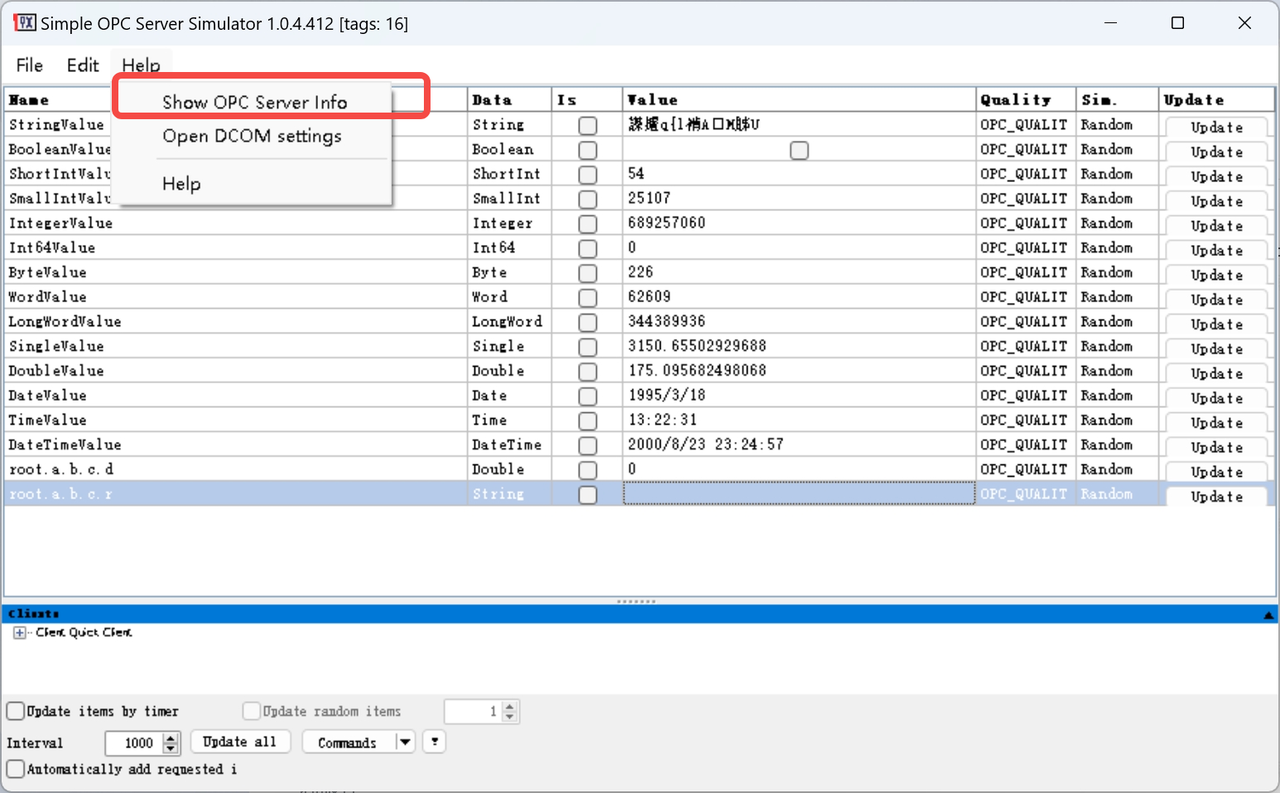
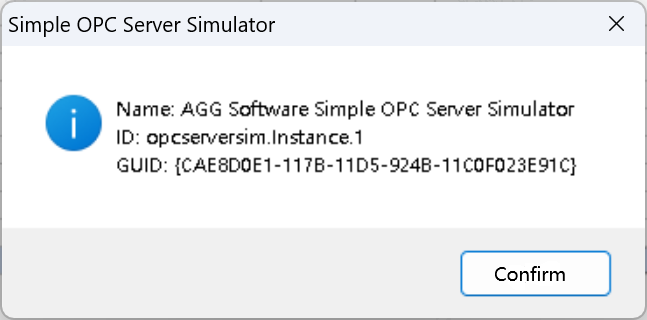
- Method 2: clsID and progID can also be obtained directly from the server.
- Click
Help>Show OPC Server Info
- The pop-up window will display the information.
3.4 Writing Data
3.4.1 DA Server
- Create a new item in the DA Server with the same name and type as the item to be written in IoTDB.
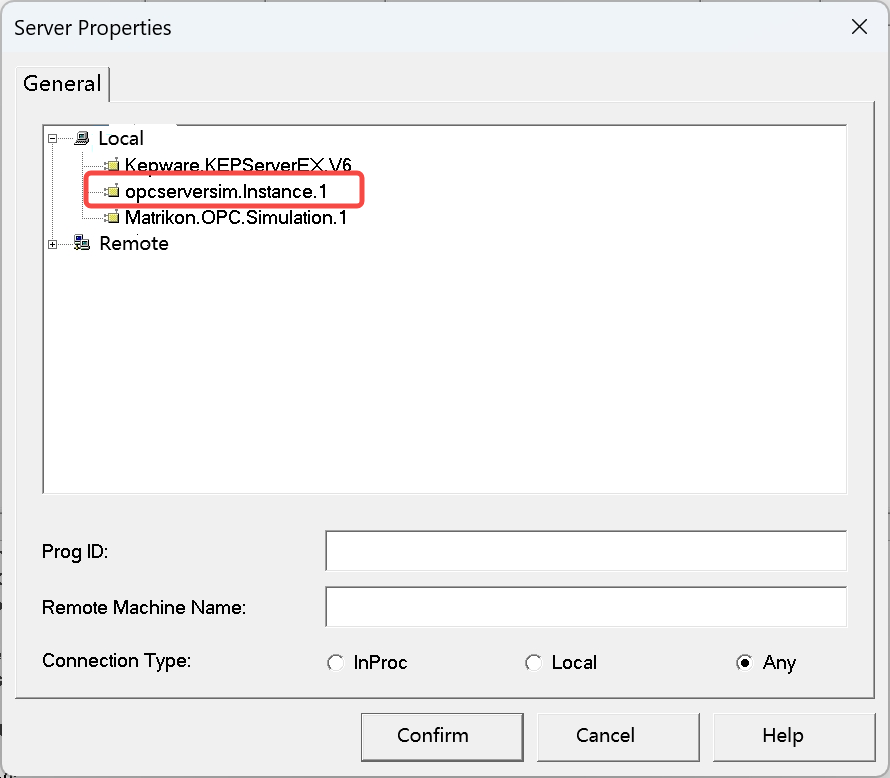
- Connect to the server in Kepware:
- Right-click the server to create a new group (the group name can be arbitrary):
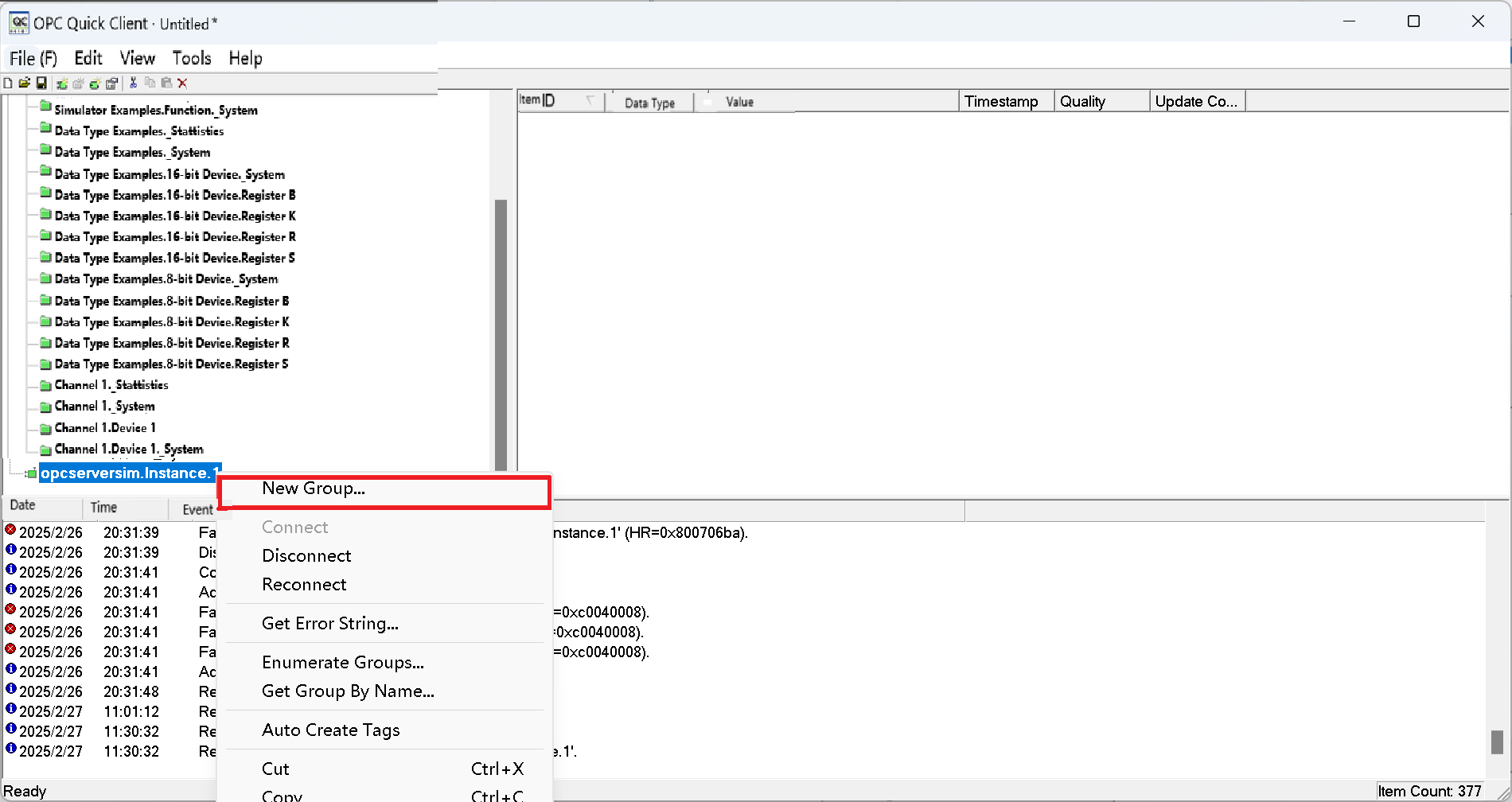
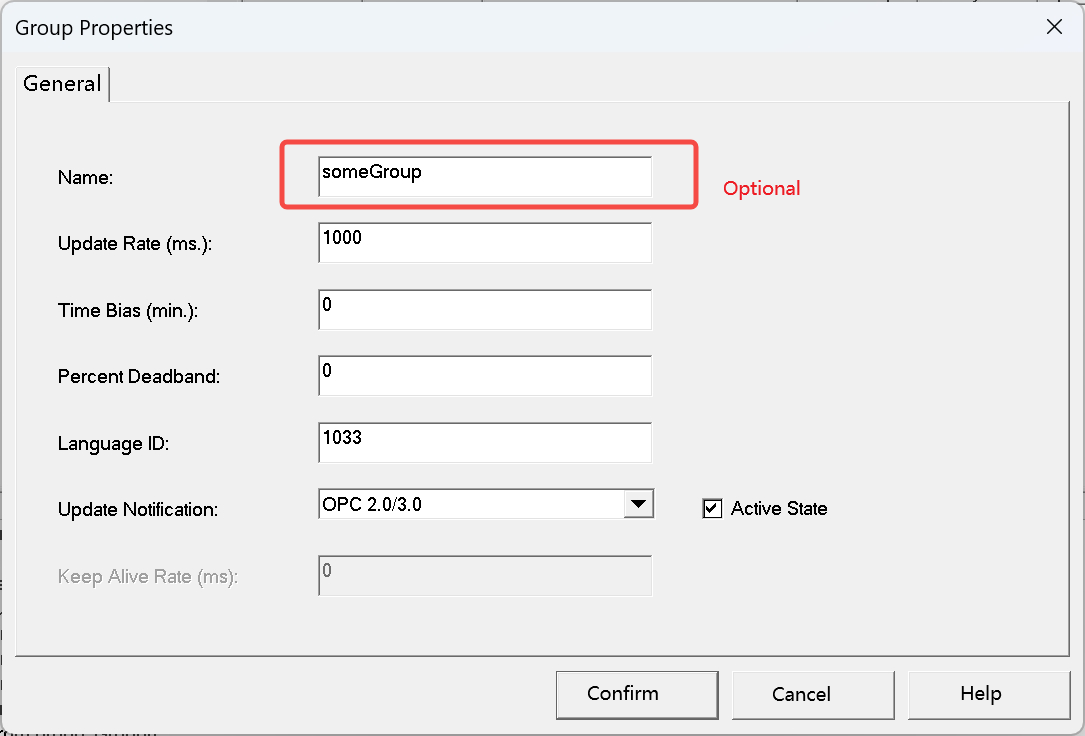
- Right-click to create a new item with the same name as the one created earlier.
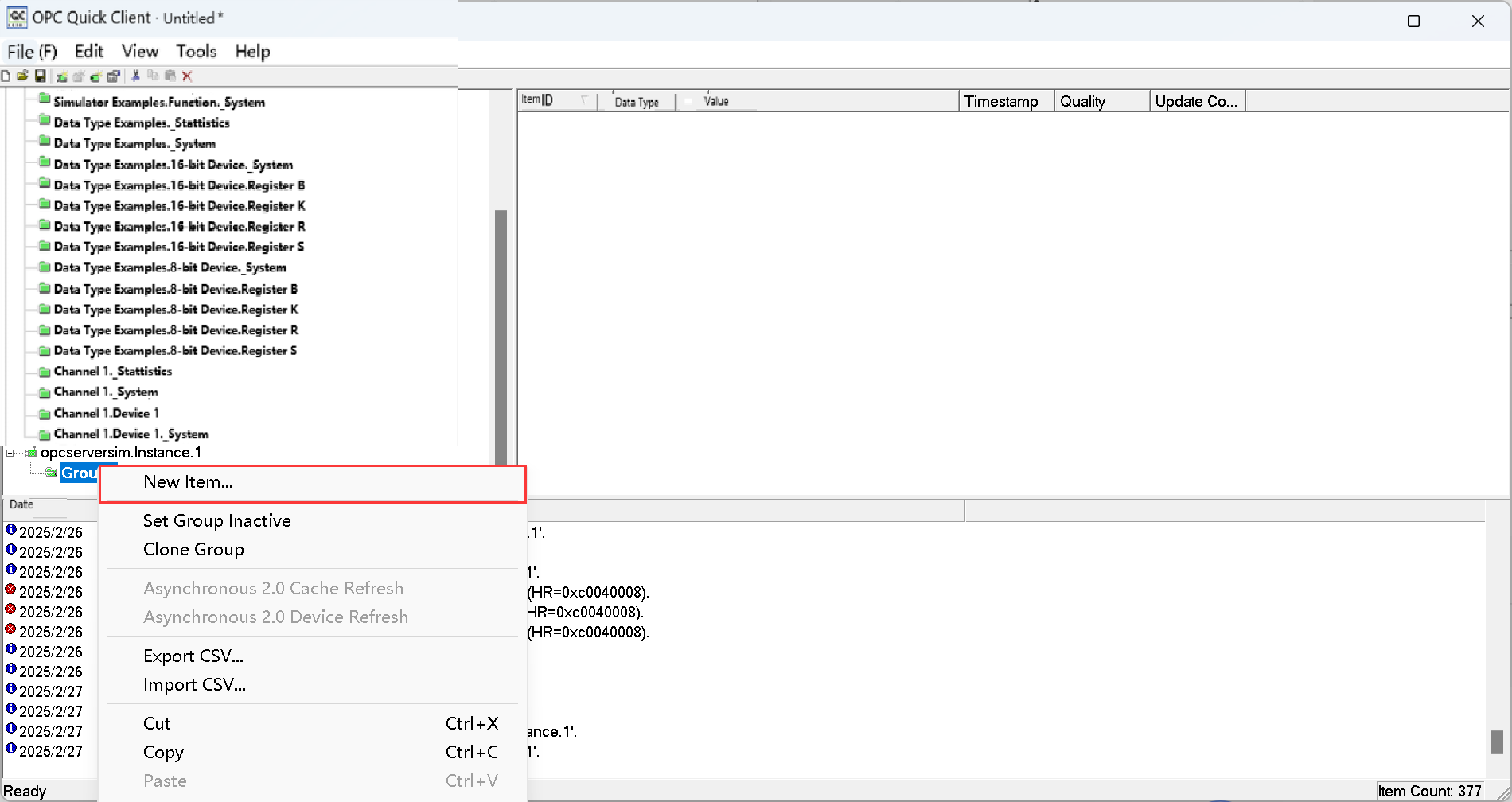
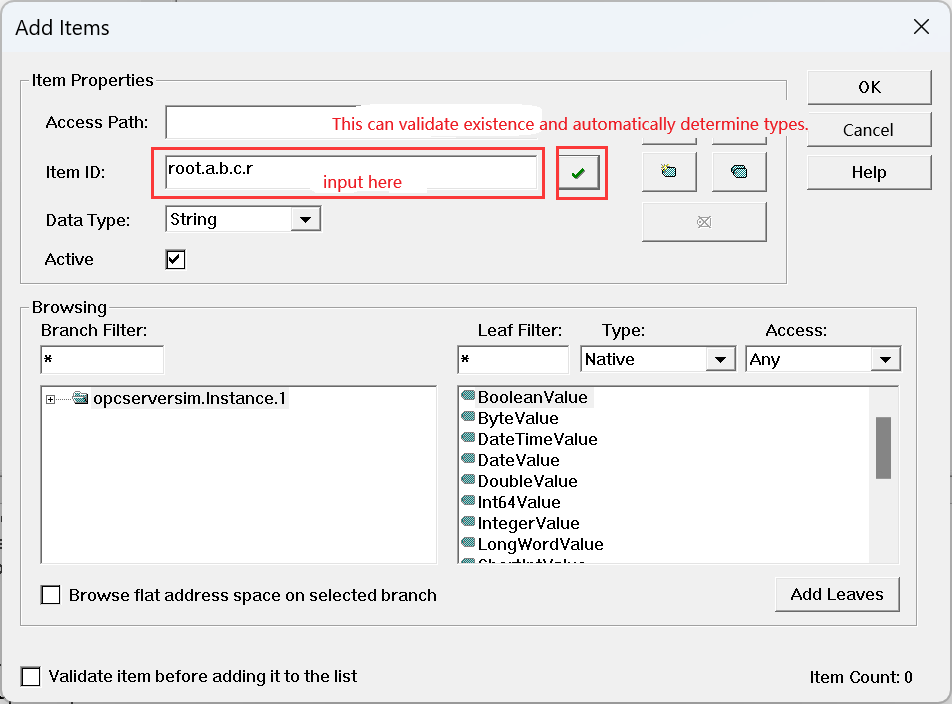
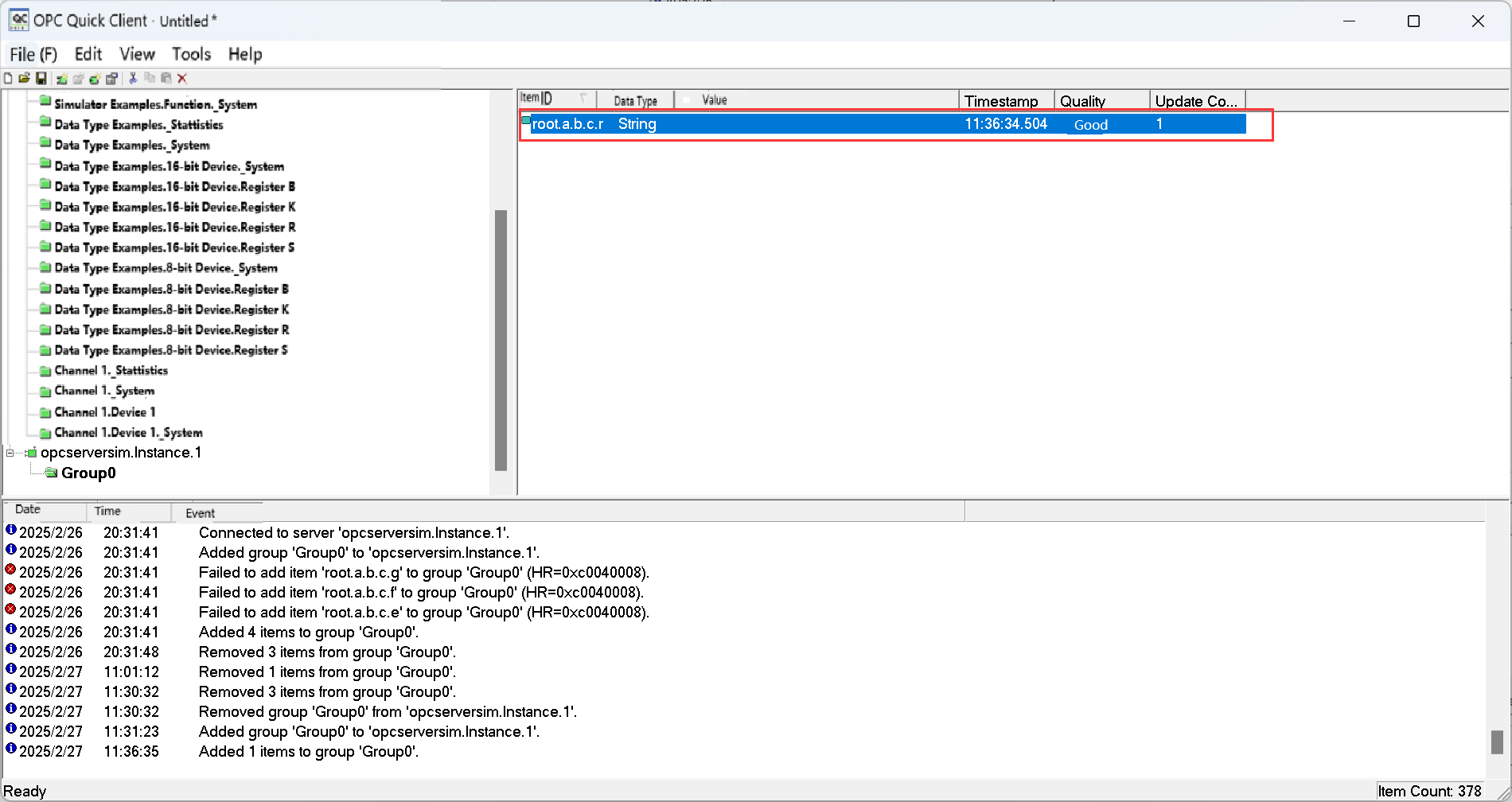
3.4.2 IoTDB
- Start IoTDB.
- Create a Pipe.
create pipe opc ('sink'='opc-da-sink', 'opcda.clsid'='CAE8D0E1-117B-11D5-924B-11C0F023E91C')- Note: If the creation fails with the error Msg: org.apache.iotdb.jdbc.IoTDBSQLException: 1107: Failed to connect to server, error code: 0x80040154, refer to this solution: https://opcexpert.com/support/0x80040154-class-not-registered/.
- Create a time series (if automatic metadata creation is enabled, this step can be skipped).
create timeseries root.a.b.c.r string;- Insert data.
insert into root.a.b.c (time, r) values(10000, "SomeString")3.5 Verifying Data
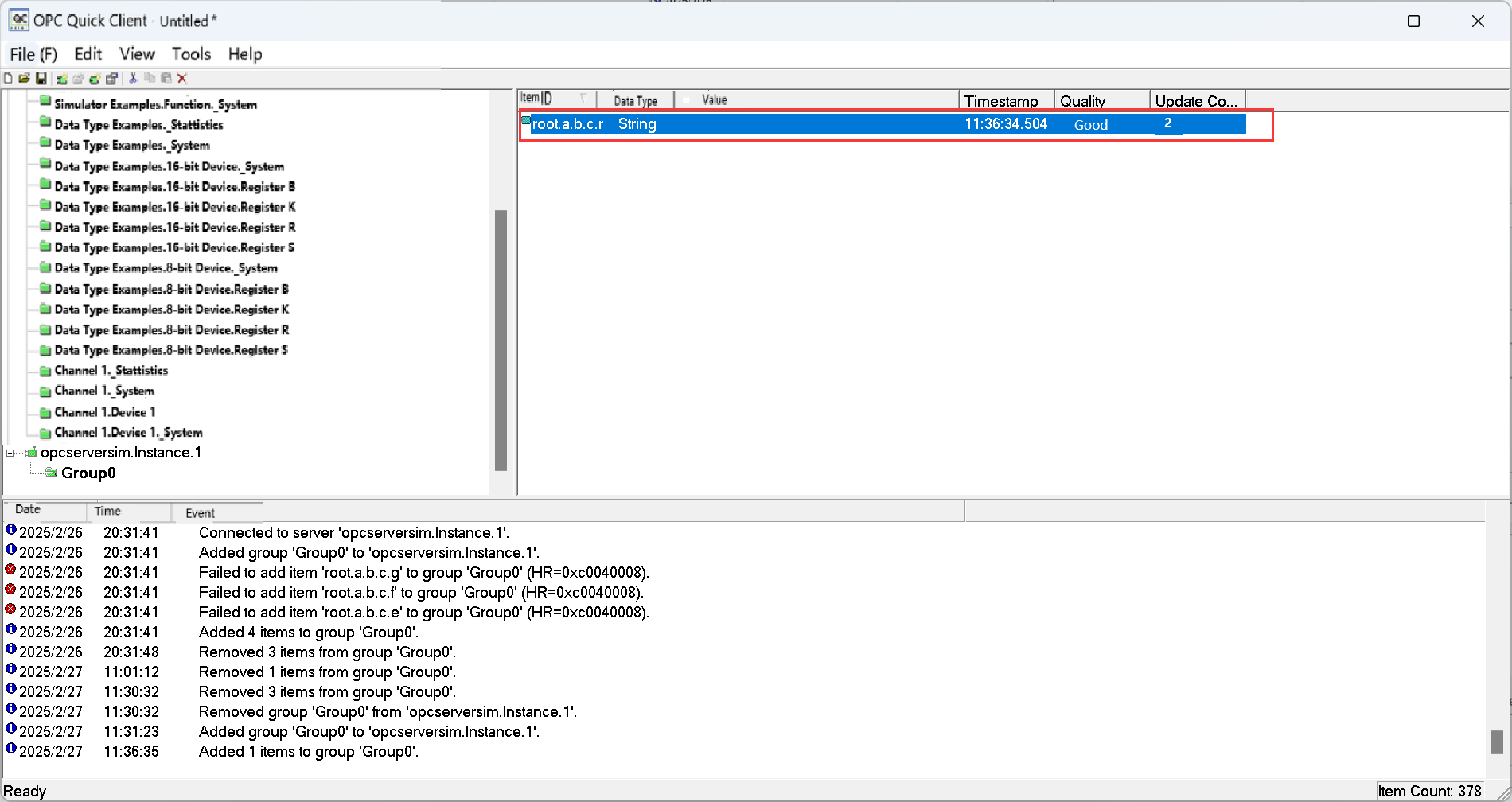
Check the data in Quick Client; it should have been updated.